
Doors & Windows — SketchUp Opening Resources
Explore SketchUp door and window resources for glazed openings, entrance structures and architectural frame details. This collection brings the existing visual references together with useful routes to Nice Tower model resources. Compare the previews before choosing an asset, and use the individual model page to check whether a file is available for your project. A good selection starts with the space you are designing, rather than the number of objects you can add to it.
Use these SketchUp door and window resources to study wall opening dimensions, frame depth, sill level and door swing. Begin with the main dimensions of your SketchUp scene, save a baseline version and select a small number of references that support your design. Existing illustrations are previews; download availability, file version and licence information belong to the individual resource. Follow the linked collections below to review those details before importing a file.
On this page
door and window: Architectural Opening Resources: selected models
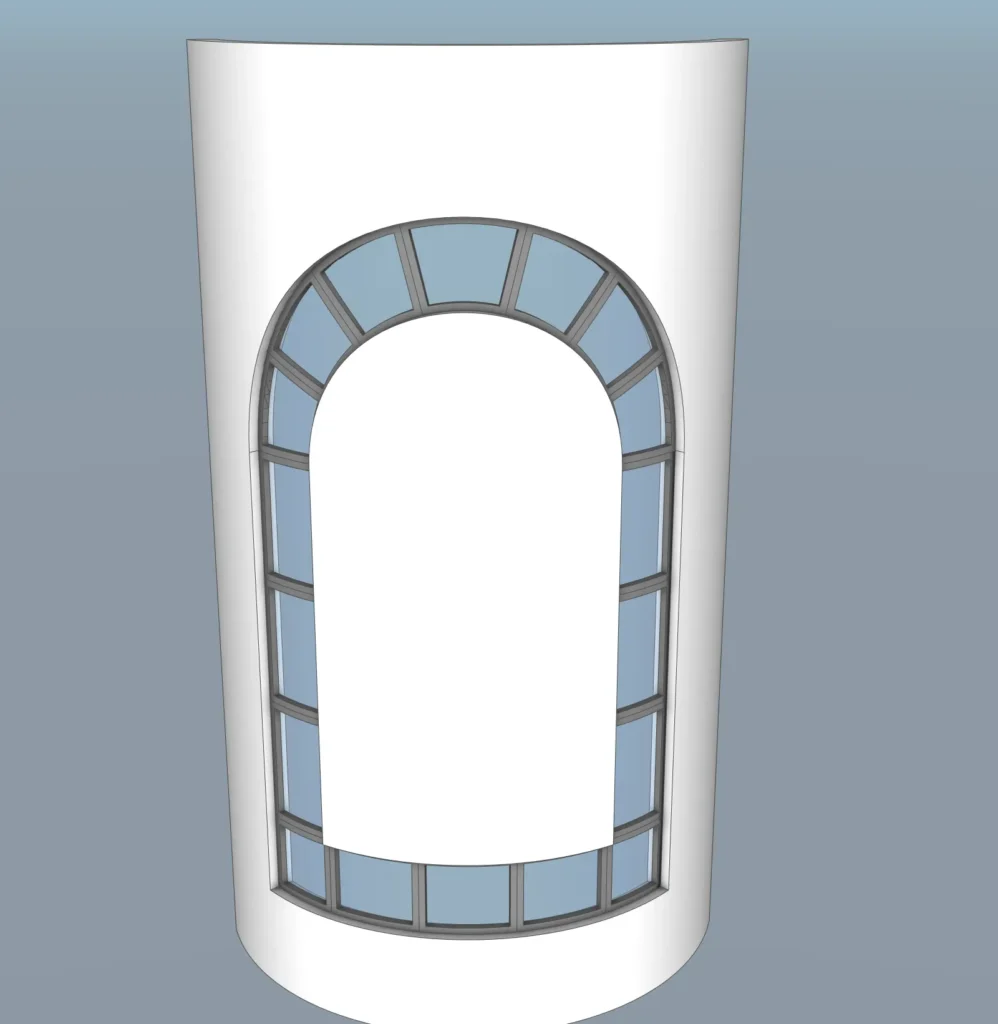
Arched Window Frame
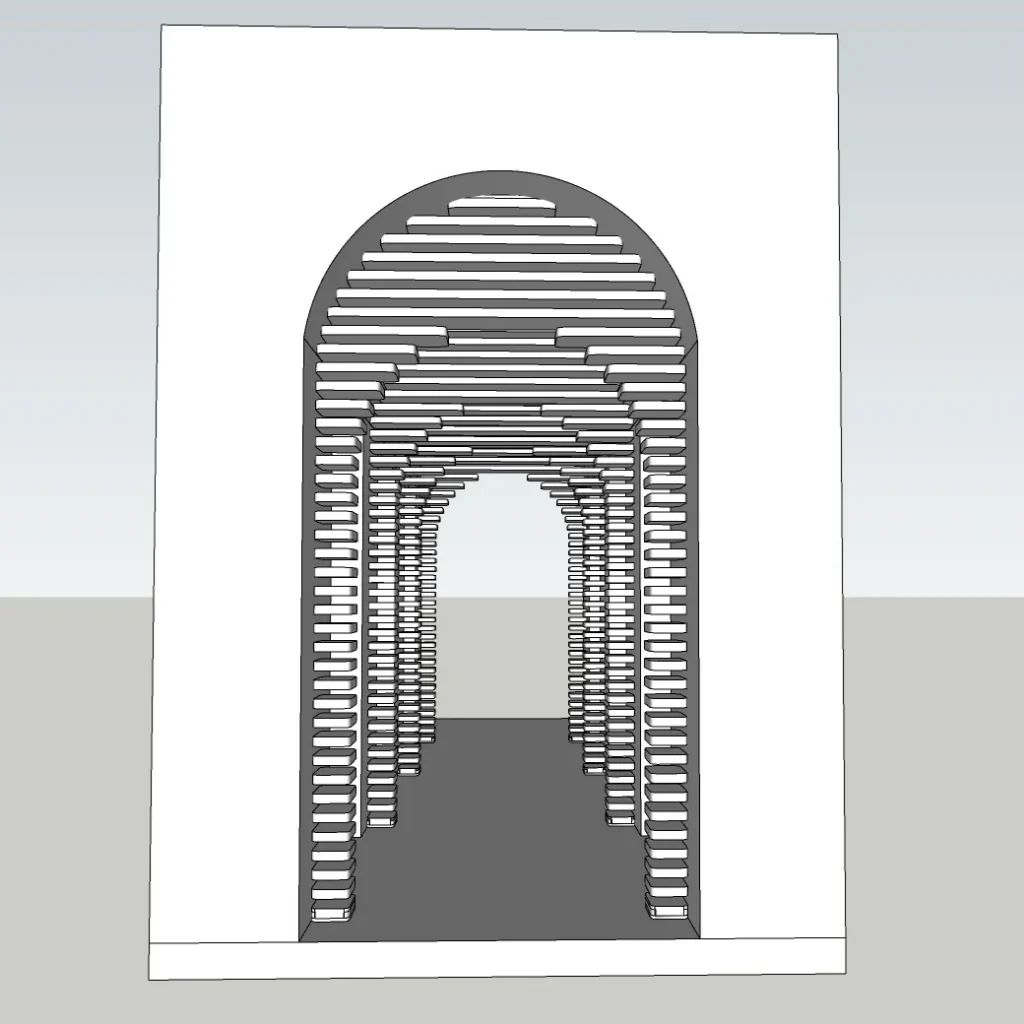
Modern Arched Entrance Tunnel
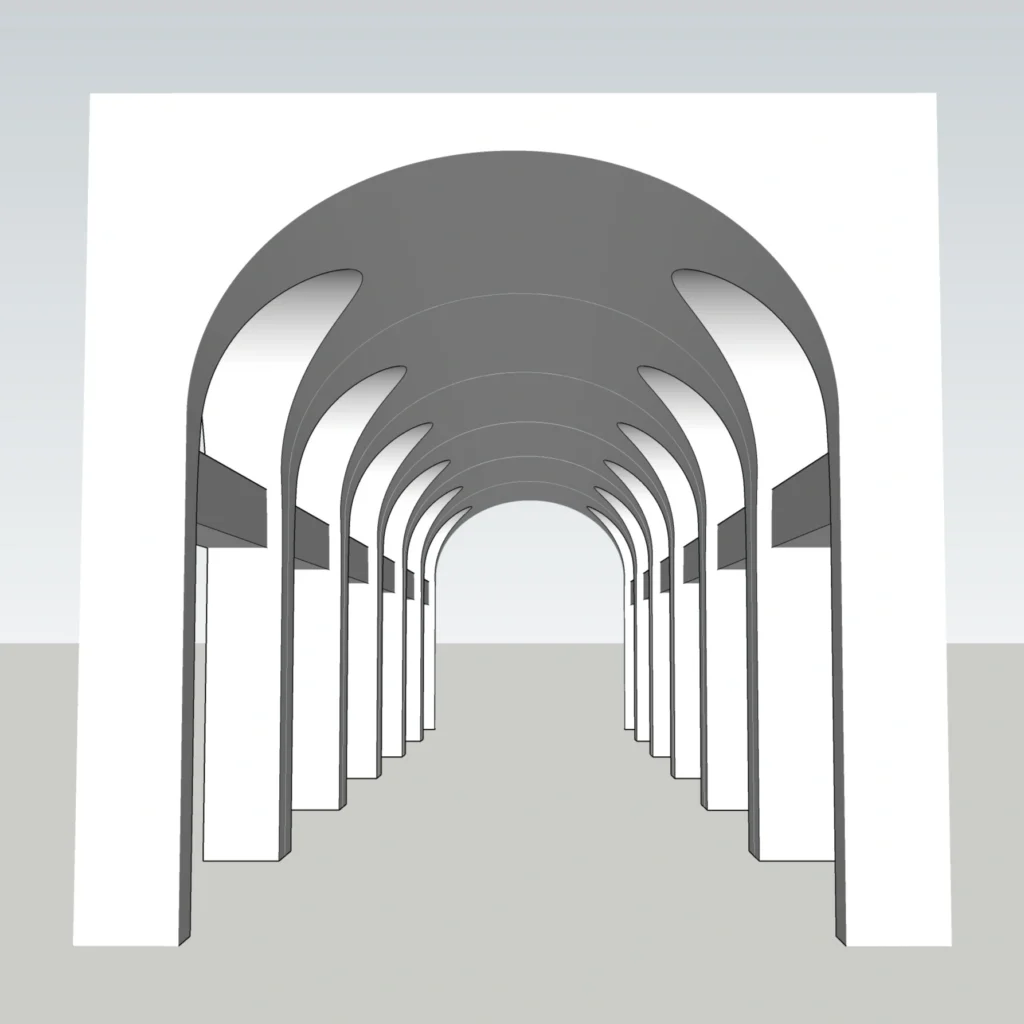
Modern Arched Corridor Passage
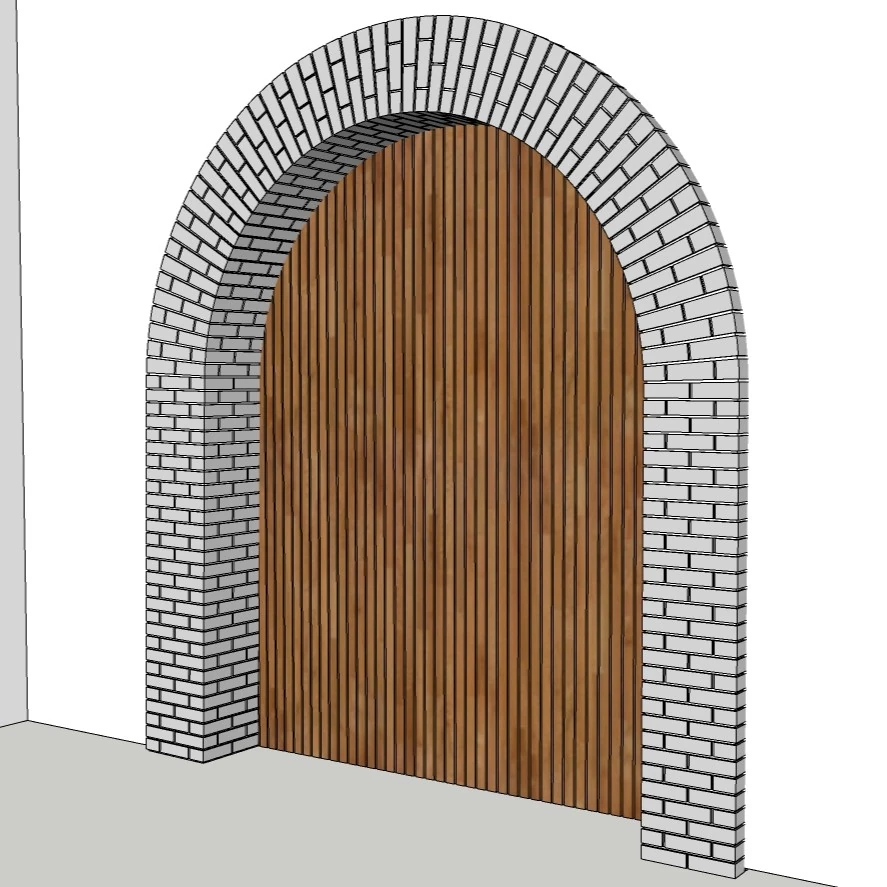
Modern Arched Entrance
Choose SketchUp door and window resources for your project
Compare wall opening dimensions, frame depth, sill level and door swing before selecting an asset. Measure the area where the object will be placed and keep those dimensions beside the preview. Look at the silhouette from the intended camera direction, then inspect the parts that will remain visible in the final image. A visually attractive model may still need changes to fit your particular room, building or site.
Open the resource description and confirm the file format, stated software version and permitted use. Some linked resources may be free and others may be paid; review the individual page rather than assuming that every preview represents a free download. Keep a copy of the original file before modifying geometry, materials or component definitions.
Prepare a reliable SketchUp model
Import one asset into a separate test file first. Check its overall scale with the Tape Measure tool, inspect face orientation and make sure you can select the object without collecting surrounding geometry. Use clearly named groups or components so revisions remain manageable. If an imported file contains many materials or unnecessary hidden objects, inspect them before introducing the asset into a larger scene.
Place the model deliberately and review wall opening dimensions, frame depth, sill level and door swing. Compare alternatives from a saved camera scene so you can judge changes fairly. Do not rely on a perspective image alone to establish dimensions. Keep a simple layout view available for checking clearances and relationships between the selected objects.
Materials and presentation for doors & windows
Review material scale at the distance used in your presentation. Repeated textures, excessive gloss and inconsistent colour can distract from the arrangement of glazed openings, entrance structures and architectural frame details. Adjust a copy of the model to match the surrounding scene, save a new version and export a test image before committing to the final presentation.
Choose only the detail needed to communicate the design. For a distant view, simplified geometry may be more useful than a heavily detailed component. For a close view, inspect edges and material transitions carefully. Remove unused imported objects after the selection is complete and keep the original reference available for comparison.
Continue with related doors & windows design lessons · Browse the free model download hub · Explore the complete model catalogue
For software commands, import options and component editing, consult the official SketchUp Help Centre alongside the topic-specific resources on this page.
Questions about SketchUp door and window resources
Where can I find door and window models files?
For door and window models, use the related collection or individual product links on this page. Open the model description and follow its current download or purchase route. A preview image alone is not a file download.
How do I check door and window models compatibility?
Check the stated version on the individual resource before downloading. Test the file separately, verify its scale and save a compatible working copy using the options supported by your software.
Can I edit door and window models for my project?
Before editing door and window models, read the individual licence and usage terms first. Where editing is permitted, work on a copy, keep components organized and check dimensions again after changing the model.