Nice Tower Academy · AI modelingAI photo to 3D model training
Learn how to turn a reference photo into a 3D model using SketchUp and SUAPP AI in this complete training page by Nice Tower Academy. Through step-by-step tutorials, you will discover how to convert suitable images into 3D objects, refine the geometry, customize the design, and apply realistic AI-generated materials to achieve professional results.
Browse complete AI modeling tutorials, quick YouTube demonstrations and related reference-image modeling techniques below. Each card links to the original video on Nice Tower’s YouTube channel. Whether you’re an architect, designer, or 3D enthusiast, this AI-assisted workflow helps you speed up your creativity and elevate your projects with cutting-edge technology.
Complete photo-to-3D tutorials · 1
Full-length tutorials for image-based AI modeling, including SUAPP AI and Hitem3D.
Complete photo-to-3D tutorials · 2
 ▶ Watch tutorial
Full tutorialTurn Any Image Into a 3D Model with SUAPP AI | SketchUp Tutorial
 ▶ Watch tutorial
Full tutorialFrom Image to 3D?! Create 3D Models with Hitem3D AI
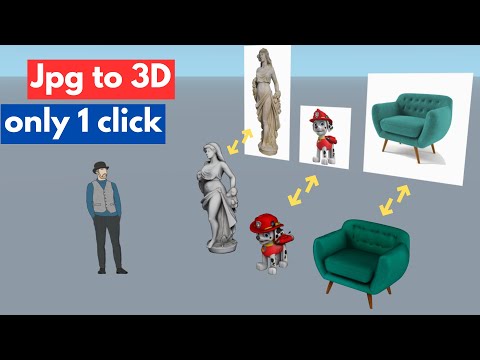 ▶ Watch tutorial
Full tutorialTurn Any Photo into a 3D Object with AI – Easy & Fast!
Complete photo-to-3D tutorials · 3
 ▶ Watch tutorial
Full tutorialTurn Any Photo into a 3D Model with SketchUp + SUAPP AI | Photo to 3D Tutorial
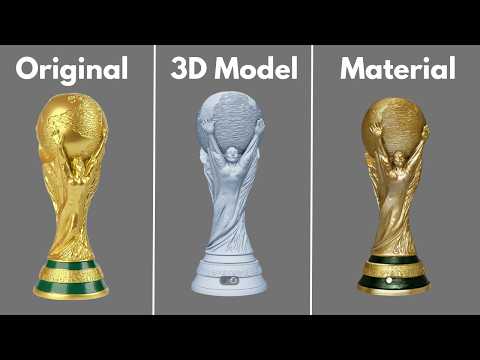 ▶ Watch tutorial
Full tutorialHow to Turn a Single Photo into a 3D Model with AI | Original → 3D → Material
Image-to-3D assets with D5
Short demonstrations of generating 3D assets from reference images in D5.
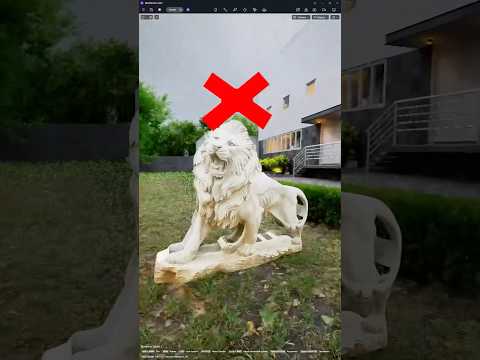 ▶ Watch Short
YouTube ShortTurn Any Reference Image into a 3D Asset | D5 Render AI Model Generation
 ▶ Watch Short
YouTube ShortImage to 3D Model in D5 Render | Faster Architectural Workflow
Quick photo-to-3D demonstrations · 2
 ▶ Watch Short
YouTube ShortThe fastest way to turn an image into a 3D model in SketchUp using the power of AI!
 ▶ Watch Short
YouTube ShortThe fastest way to turn an image into a 3D model in SketchUp using the power of AI!
 ▶ Watch Short
YouTube ShortThe fastest way to turn an image into a 3D model in SketchUp using the power of AI!
Quick photo-to-3D demonstrations · 3
 ▶ Watch Short
YouTube ShortTurn a Single Photo into a 3D SketchUp Model 🚀 Suapp ai
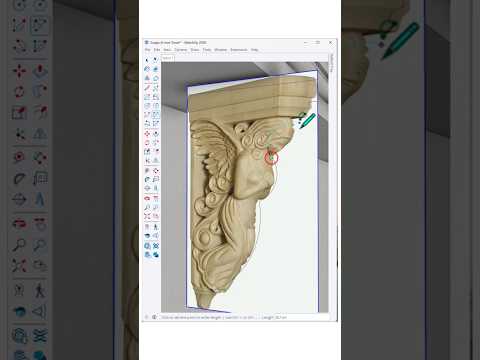 ▶ Watch Short
YouTube ShortTurn a simple image into a refined 3D detail using a faster AI-based workflow in SketchUp.
 ▶ Watch Short
YouTube ShortTurn Images into 3D Models in SketchUp | SUAPP AIM Workflow
Quick photo-to-3D demonstrations · 4
 ▶ Watch Short
YouTube ShortTurn your photo into a 3D model in SketchUp!
 ▶ Watch Short
YouTube ShortTurn Photos into 3D in SketchUp Transform any image into a realistic 3D model in minutes
 ▶ Watch Short
YouTube ShortThe fastest way to turn an image into a 3D model in SketchUp using the power of AI!
Quick photo-to-3D demonstrations · 5
 ▶ Watch Short
YouTube ShortTurn Photos into 3D in SketchUp! 🚀Convert any image into a realistic 3D model in just a few steps.
 ▶ Watch Short
YouTube ShortTurn Any Photo into a 3D Model in SketchUp | Fast & Easy 🚀
 ▶ Watch Short
YouTube ShortImage into a 3D model in SketchUp using the power of AI!
Quick photo-to-3D demonstrations · 6
 ▶ Watch Short
YouTube ShortA single image can become a usable 3D object.Faster modeling, smarter workflow, and better results.
 ▶ Watch Short
YouTube ShortFrom image to 3D model — directly inside SketchUp
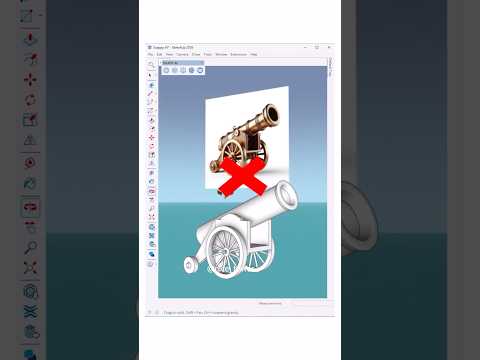 ▶ Watch Short
YouTube ShortFrom a reference image to a detailed 3D model in SketchUp.
Quick photo-to-3D demonstrations · 7
 ▶ Watch Short
YouTube ShortCreate a 3D model from a reference image faster way to build complex furniture forms inside SketchUp
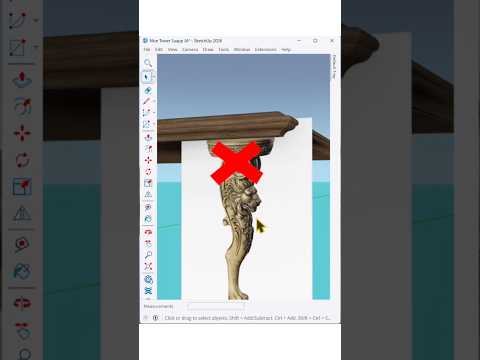 ▶ Watch Short
YouTube ShortA single image → a complete 3D model.Stop rebuilding reference images manually
 ▶ Watch Short
YouTube ShortFrom World Cup Image to 3D Model | SUAPP AIM Workflow
Quick photo-to-3D demonstrations · 8
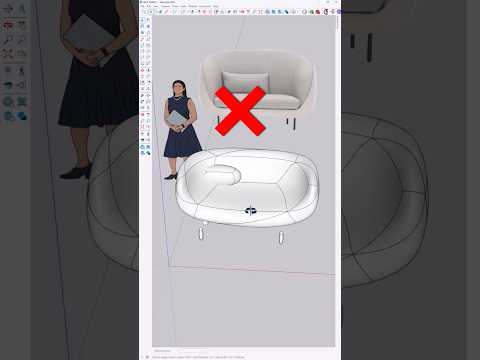 ▶ Watch Short
YouTube ShortTurn Photos Into 3D 🚀Transform any image into a 3D model in SketchUp—quick, easy, and perfect
 ▶ Watch Short
YouTube ShortTurn an image into a clean 3D model using AI and the right workflow Faster modeling, smarter results
 ▶ Watch Short
YouTube ShortThe fastest way to turn an image into a 3D model in SketchUp using the power of AI!
Quick photo-to-3D demonstrations · 9
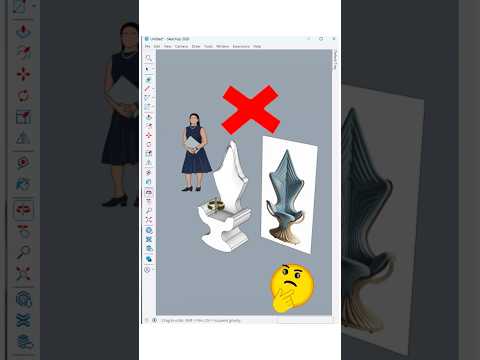 ▶ Watch Short
YouTube ShortTurn Photos 3D 🚀Want to turn a simple photo into a 3D model in SketchUp—fast and easy
 ▶ Watch Short
YouTube ShortTurn any photo into a 3D model—fast, accurate, and beginner-friendly! 🤩✨
 ▶ Watch Short
YouTube ShortTurn any photo into a 3D model—fast, accurate, and beginner-friendly! 🤩✨
Quick photo-to-3D demonstrations · 10
 ▶ Watch Short
YouTube ShortTurn Any Photo Into a 3D Model in Seconds! 🚀
 ▶ Watch Short
YouTube ShortPhoto to 3D modelThe fastest way to turn an image into a 3D model in SketchUp using the power of AI
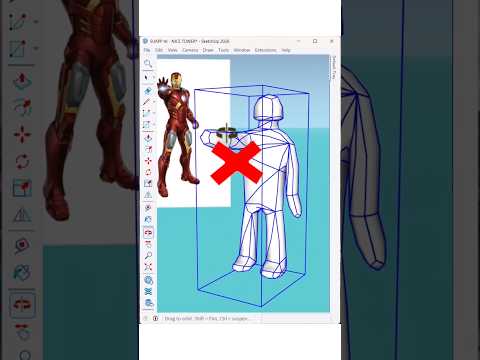 ▶ Watch Short
YouTube ShortPhoto to 3D – Creating detailed objects manually can take a lot of time.
Quick photo-to-3D demonstrations · 11
 ▶ Watch Short
YouTube ShortTurn Photos 3D 🚀Want to turn a simple photo into a 3D model in SketchUp—fast and easy?
 ▶ Watch Short
YouTube ShortTurn Photos 3D 🚀Want to turn a simple photo into a 3D model in SketchUp—fast and easy
 ▶ Watch Short
YouTube ShortWhat if a Golden Glove reference image could become a detailed 3D model? Image to 3D
Quick photo-to-3D demonstrations · 12
 ▶ Watch Short
YouTube ShortTurn Photos 3D 🚀Want to turn a simple photo into a 3D model in SketchUp—fast and easy?
 ▶ Watch Short
YouTube ShortFrom image to 3D model — no long setup, no complex steps
 ▶ Watch Short
YouTube ShortTurn a simple image into a fully editable 3D SketchUp model — faster than you think.
Quick photo-to-3D demonstrations · 13
 ▶ Watch Short
YouTube ShortImage → 3D Model The fastest & smartest way to convert an image into a 3D model in SketchUp using AI
 ▶ Watch Short
YouTube ShortThe fastest way to turn an image into a 3D model in SketchUp using the power of AI! link in our bio
 ▶ Watch Short
YouTube ShortConvert Any Image to a 3D Model in SketchUp | SUAPP AI Workflow
Quick photo-to-3D demonstrations · 14
 ▶ Watch Short
YouTube ShortStart with an image, finish with a model.A faster way to build, without starting from scratch.
Reference-image modeling and depth maps · 2
 ▶ Watch Short
YouTube ShortSketchUp tutorial ✨ Turn your 2D calligraphy into stunning 3D art in SketchUp!
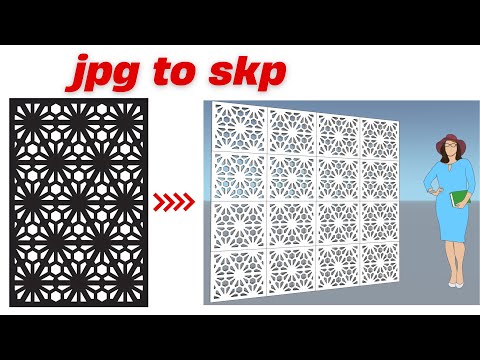 ▶ Watch tutorial
Full tutorialJPG to sketchup: 3D Modeling Tutorial with GRC Jali
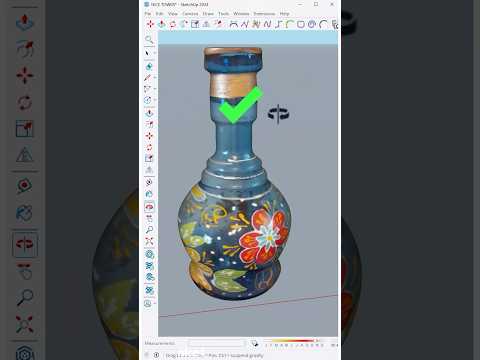 ▶ Watch Short
YouTube ShortThis tutorial shows the creative 3D modeling of an object using a photo in SketchUp.
Reference-image modeling and depth maps · 3
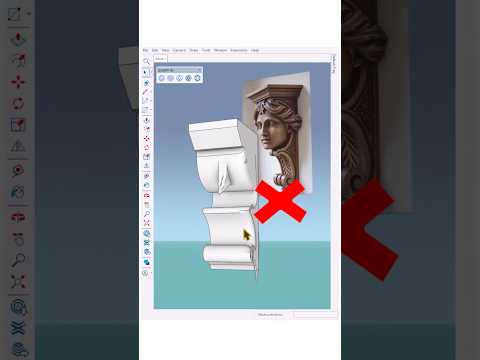 ▶ Watch Short
YouTube ShortTurn a 2D architectural reference into a 3D detail in SketchUp
 ▶ Watch Short
YouTube ShortTurn a simple photo into a clean 3D model in SketchUp
Choose a useful reference and inspect the generated model
Use an image that shows the object clearly and avoids heavy occlusion. A simple background can make the intended shape easier to identify. Treat the generated result as a starting point, then check scale, silhouette and missing surfaces in SketchUp.
Compare the model from multiple angles before using it in a scene. Organize the object as a group or component, review its materials and simplify unnecessary geometry where possible. A convincing preview does not guarantee accurate dimensions, so measure important project elements separately.
Image-to-3D guide · SUAPP tools · Project models