Nice Tower · Practical design guide
SUAPP AI: Powerful AIR, AIC and AIM Guide 2026
Choose the SUAPP AI workflow by the output you need: AIR for an image from a design view, or AIM for an exploratory 3D asset from a reference. Compare the demonstrations below, inspect the result against your project, and confirm that your current plan includes the required tool and SketchUp access before subscribing.
On this page
Official partner · SketchUp AI tools
Create better design concepts faster with SUAPP AI for SketchUp. Compare SUAPP AIR for AI rendering and SUAPP AIM for image-to-3D modeling, then choose the workflow that fits your project.
Official partner:Nice Tower helps SketchUp users evaluate SUAPP AI tools, plans and real project workflows before they subscribe.
This guide contains affiliate links. Purchases may earn NiceTowers a commission at no extra cost to you.
Choose your starting point
A render or a 3D model?
Need a rendering direction? Start with AIR and review the image against your source view. Need an object? Start with AIM and inspect its hidden surfaces, scale and geometry before using it in a scene. Free access, trial credits and plugin access must be checked in the current account offer; they are not assumed to be included in every plan.
Explore the look of your design
Start with a SketchUp view, sketch or design image. Explore visual directions for architecture, interiors and landscape projects.
- Compare materials, lighting and atmosphere.
- Develop images for concept discussions.
- Review generated details against your original design.
Build an asset from a reference
Use a reference image to generate a 3D object, then review its geometry, scale and materials for your scene.
- Explore furniture, props and concept objects.
- Inspect the result from every angle.
- Plan for cleanup before using it in a final project.
See the workflow
SUAPP AI video tutorials
Use these walkthroughs to compare the steps with the work you actually do.
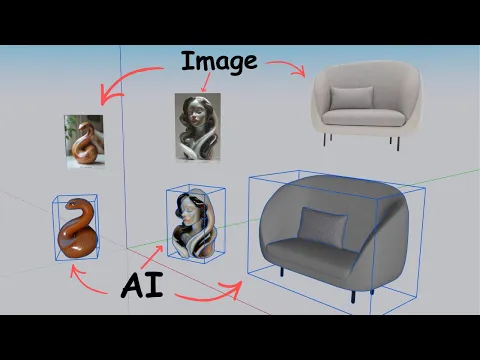
Watch on YouTube ↗
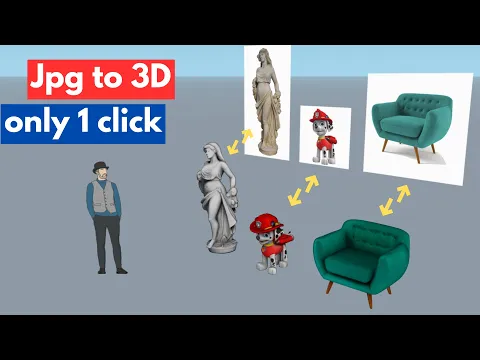
Watch on YouTube ↗
Playing a video loads content from YouTube. Interfaces and available features may differ from the version shown.
01 / Visual exploration
SUAPP AIR for SketchUp: AI rendering from your design view
Choose a useful camera view first. A clear composition makes it easier to judge whether the generated image communicates your design.
- Prepare the view. Set the camera, visible geometry and basic materials.
- Describe the direction. Specify the mood, materials and lighting you want to explore.
- Compare and refine. Check openings, edges and proportions before presenting the result.
AI images can introduce details that are not in your model. Treat them as visual studies and check design-critical elements.

Compare the input and the result
Drag the divider to compare the reference with the generated result. You can also use the slider below or its arrow keys.

 AfterBefore
02 / Asset creation
SUAPP AIM for SketchUp: image-to-3D modeling
A useful starting point for objects that would otherwise take time to build from scratch.

- Choose a clear reference. Prefer an unobstructed object with visible shape and detail.
- Generate and inspect. Rotate the result to check hidden surfaces and proportions.
- Prepare it for your scene. Adjust scale, materials and geometry where necessary.
Use your project requirements to judge the result. A convincing preview does not establish dimensional accuracy or clean topology.
Before subscribing
SUAPP AI pricing: which plan fits your workflow?
Check plugin access first, then credits and billing period. Browser rendering and the full modeling workflow are not included in every plan.
| Your priority | Plan to compare | Key distinction |
|---|---|---|
| Rendering in a browser | Basic | AIR web access; 5,000 monthly credits. |
| AIR inside SketchUp | Standard | Adds the AIR SketchUp plugin; 10,000 monthly credits. |
| Image-to-3D and more tools | Pro | Includes AIM and the wider suite; 20,000 monthly credits. |
| Higher-volume use | Max | Advertises unlimited credits; review current conditions and inclusions. |
Plan features checked on 9 September 2026 against the official pricing page. Prices, promotions and terms can change; confirm the total and renewal conditions before purchasing.
How to use SUAPP AI with SketchUp
Start small so you can judge quality before committing a whole project.
Choose one task
Use one interior view for AIR or one clearly photographed object for AIM. Decide what a usable result should look like.
Check access and compatibility
Confirm your plan includes the required tool. For plugin workflows, use the current official installer and check supported versions.
Generate, then inspect
Compare the output with your input. Look for changed proportions, missing details and inconsistencies.
Keep what works
Refine the strongest result and record the settings that helped. Use that result to decide whether the workflow suits your projects.
What else is in SUAPP AI?
Beyond AIR and AIM, the suite includes AIC for concepts, AIA for animation, AIT for design conversations and AIF for a connected design canvas. See the official product overview for current capabilities.

Questions before you start
How do I get the Nice Tower 6% discount?
Use a registration button on this page to visit SUAPP AI through Nice Tower, then create your new account using that link. The offer is for new registrations through Nice Tower. Check that the Nice Tower offer and discounted total appear before completing your purchase.
What is SUAPP AI?
SUAPP AI is a suite of design tools spanning visualization, modeling and related creative tasks. This guide focuses on AIR rendering and AIM image-to-3D workflows for SketchUp users.
What is the difference between AIR and AIM?
AIR is for visual exploration and rendered images. AIM is for generating 3D assets. Choose based on whether your next step needs an image or an object in your scene.
Does every plan include the SketchUp plugin?
No. The current pricing page lists Basic as AIR web-only and adds the AIR SketchUp plugin in Standard. AIM is listed in Pro and Max. Check the current plan details before paying.
Is SUAPP AI free for SketchUp? Is there a free trial?
The platform offers paid plans. Trial access and promotional credits may change, so check your account for the current offer rather than assuming all tools are free.
Can I use generated models without editing?
Inspect each result first. Scale, topology, hidden surfaces and materials may need adjustment. Check the applicable usage terms for your intended project.
Where can I download the SUAPP AI SketchUp plugin?
Use the Download section on the official SUAPP AI website. Check the supported application version and installation instructions before installing.
Make your next idea the example
You’ve seen the possibilities.
What could you create?
Bring that unfinished concept, saved reference or SketchUp view. Discover how it could look as a render or a 3D asset in SUAPP AI.
Get 6% off with a new registration through Nice Tower.
Keep building your SketchUp skills
One workflow · six AI tools
Explore the SUAPP AI design suite
From the first sketch to the final presentation, SUAPP AI connects rendering, concept exploration, animation, modeling and design assistance in one workflow.
 SUAPP AIRAI rendering from a SketchUp view or design image.
 SUAPP AICTurn a brief or prompt into visual design concepts.
 SUAPP AIATransform still design images into motion and video.
 SUAPP AIMGenerate a 3D model from a reference image.
 SUAPP AITAsk design questions and refine project directions.
 SUAPP AIFConnect images, text, models and documents on one canvas.
Capabilities and plan availability can change. Confirm current inclusions on the official SUAPP AI overview ↗.
See the possibilities
One idea, multiple design directions
Explore examples inspired by the official SUAPP AI workflow—from concept exploration to presentation-ready visuals.


Watch SUAPP AI in action
From a simple idea to a visual result
Short official product demonstrations show how SUAPP AI supports concept exploration, AI rendering and image-to-3D workflows.
AI design explorationMove from an initial direction to a stronger visual concept.
AI rendering workflowCompare materials, mood and presentation-ready options.
Image-to-3D possibilitiesTurn a reference into a starting point for a 3D asset.
Connect AIR, AIC and AIM to different design decisions
Use AIR when an existing view needs a visual direction, AIC when the starting point is a written concept brief, and AIM when you need an exploratory 3D asset. Check the official AIR help and AIM product guide for the current controls. Keep the measured project model authoritative and review generated imagery and geometry before including them in a presentation.