
Watch SketchUp to AI Render – Easy Interior Design Workflow | Nice Tower on Nice Tower →
AI rendering training
Learn powerful AI rendering techniques for SketchUp and architectural visualization through step-by-step video tutorials by Nice Tower Academy. On this page, you’ll find a curated collection of AI rendering lessons where each card links directly to the original video lesson.
Whether you’re enhancing your visualization workflow, speeding up project rendering, or exploring new AI-based tools, Nice Tower provides professional training — covering smart rendering workflows, AI texture enhancement, lighting improvements, upscaling, real-time visualization, and post-production techniques. Browse the tutorials, follow the guides, and elevate your rendering skills using cutting-edge AI technology.
Choose a video lesson
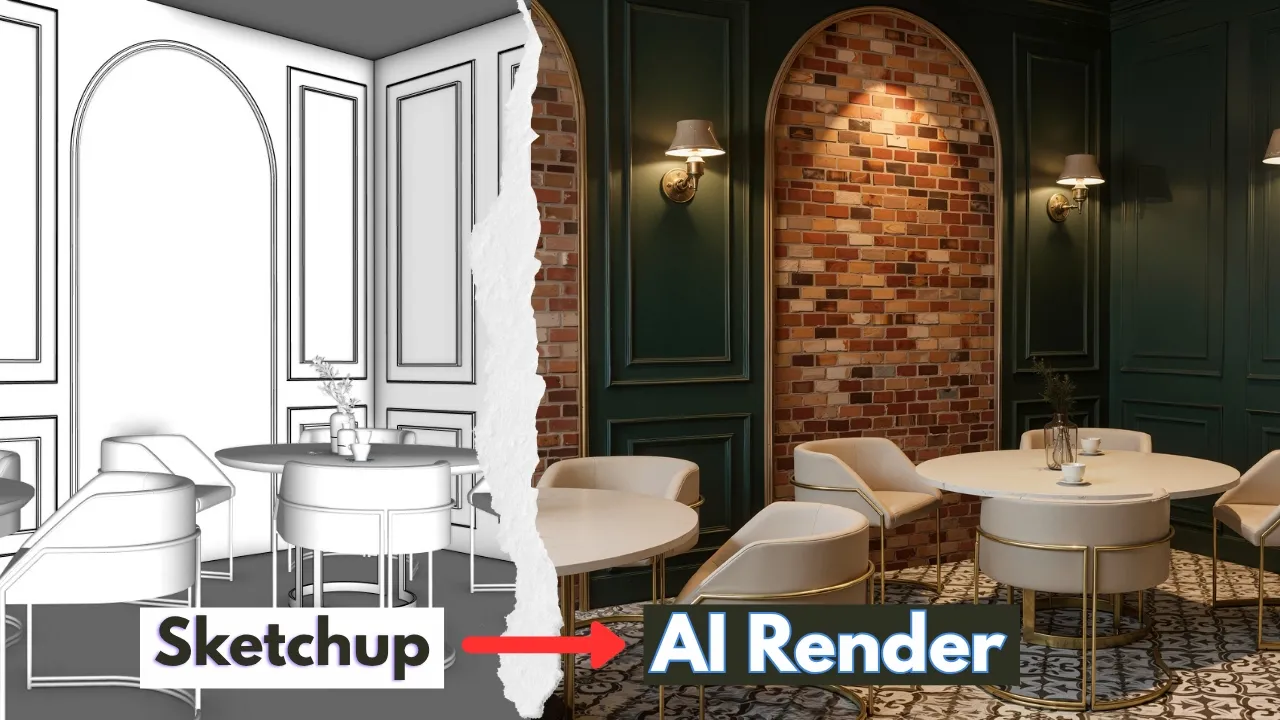
SketchUp to AI render
Follow an interior visualization workflow from a SketchUp view to an AI-assisted result.
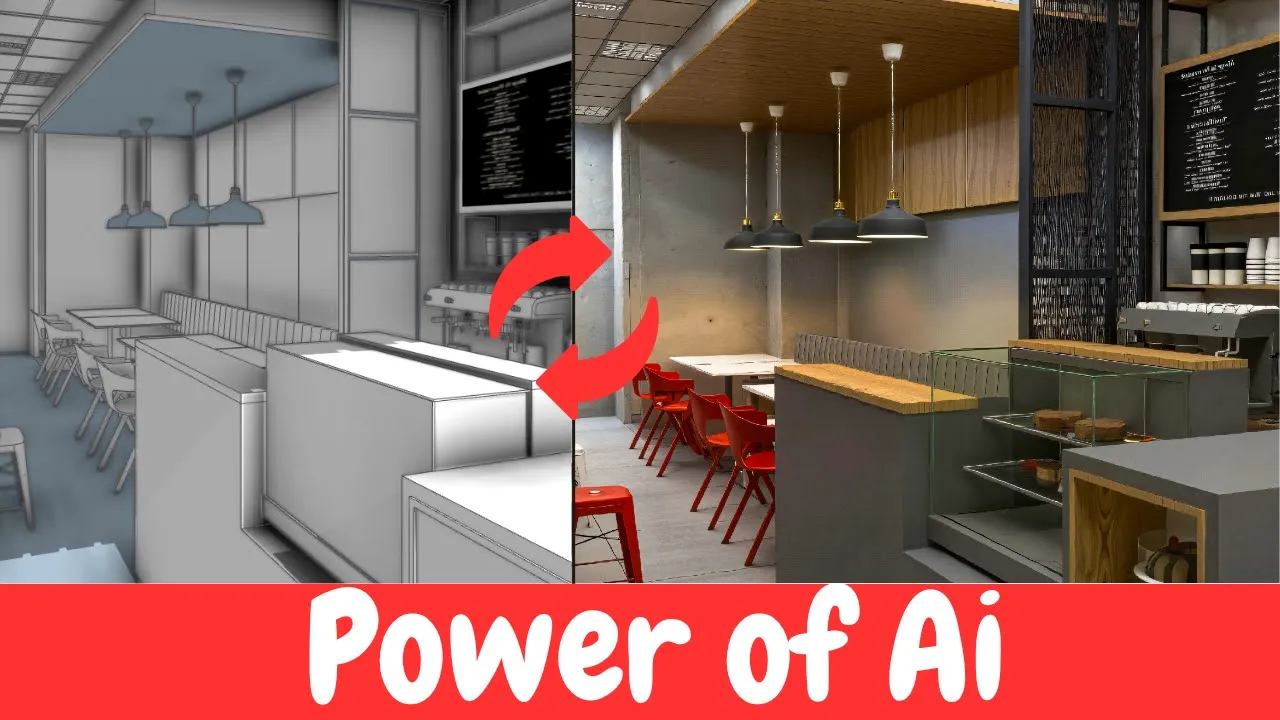
From sketch to rendered interior
Explore how an interior sketch develops into a rendered design image.
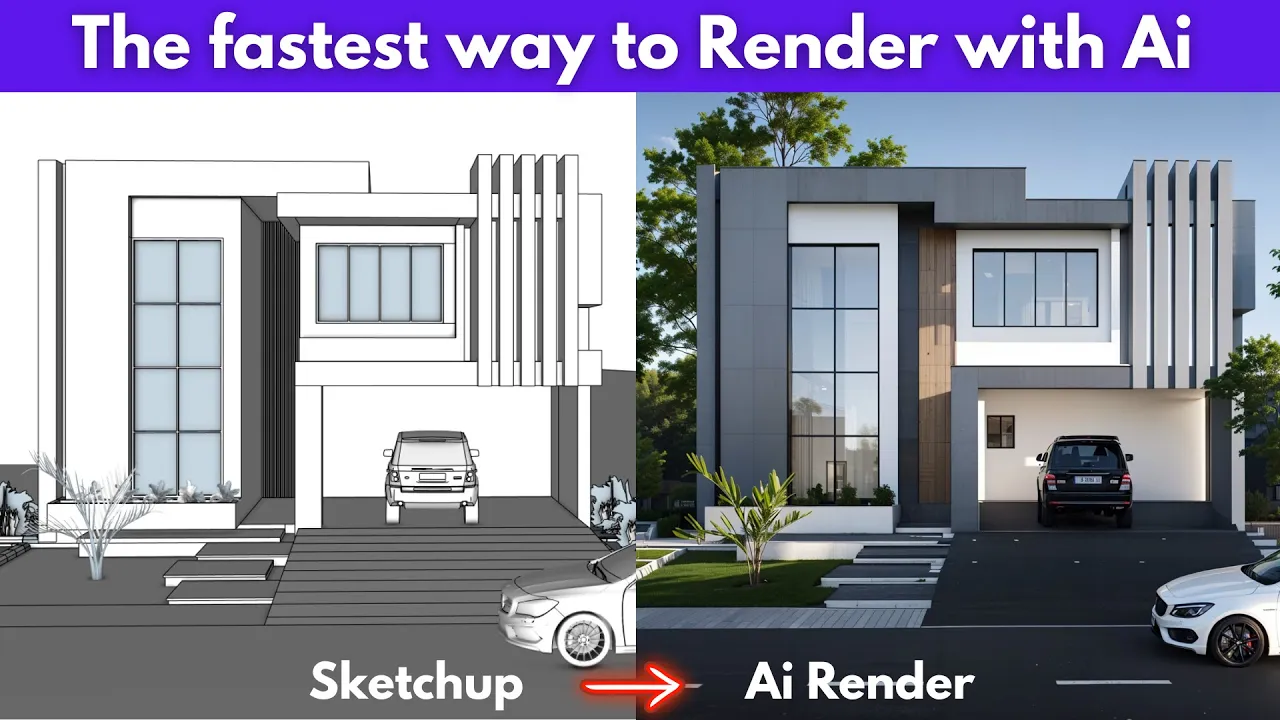
A faster AI rendering workflow
Watch the original demonstration and compare its workflow with your current rendering process.
Make the most of each lesson
- Prepare a clear SketchUp scene and choose a camera view before rendering.
- Keep the design brief, reference image and material intent consistent.
- Review the result for geometry changes, lighting errors and unwanted details before delivery.
Explore structured SketchUp courses ↗ · Browse SketchUp project resources ↗
Practice a repeatable AI rendering workflow
Prepare a clean SketchUp camera view with clear geometry and recognizable materials. Describe the architectural style, main materials, lighting and camera intent in your prompt. Change one instruction at a time so you can understand why a result improves or loses detail.
Compare each generated image with the original scene. Review window positions, furniture, proportions and important design elements before using it in a presentation. Save the source model and the prompt alongside the selected output so you can reproduce the workflow.