Nice Tower · SketchUp tools and workflow guides
Skimp for SketchUp
Skimp imports external 3D assets into desktop SketchUp and lets you adjust mesh detail before insertion. Use the preview to check dimensions, units, orientation and materials; then compare the reduced mesh with the original. The guide below explains the import workflow and common simplification limits.
Table of Contents
Skimp 2.0 for SketchUp – Import, Simplify, and Optimize 3D Models
Skimp is an importer and polygon-reduction extension. Import formats documented by the developer include GLB, USD, OBJ, FBX, DAE and PLY. Reducing detail can make an asset easier to manage, but the result depends on its geometry, materials, settings and the rest of your scene. Keep a copy of the source model.
At NiceTowers, we recommend Skimp for architects, interior designers, product designers, and visualization specialists who routinely use external 3D models from marketplaces and need efficient polygon reduction inside SketchUp.
Skimp Overview (Video Preview)
The video below introduces Skimp’s import and optimization workflow, demonstrating how it reduces file size while preserving key details.
What is Skimp for SketchUp?
Skimp previews imported geometry and provides controls for simplification, orientation and units. It also includes a Replace Textures tool for correcting material assignments. It is not a guarantee of faster rendering, crash prevention or automatic repair of every mesh defect.
- Import formats: OBJ, FBX, STL, 3DS, DAE, and more
- Polygon reduction: decimate geometry while preserving detail
- Error-tolerant workflows: inspect imported geometry and material assignments
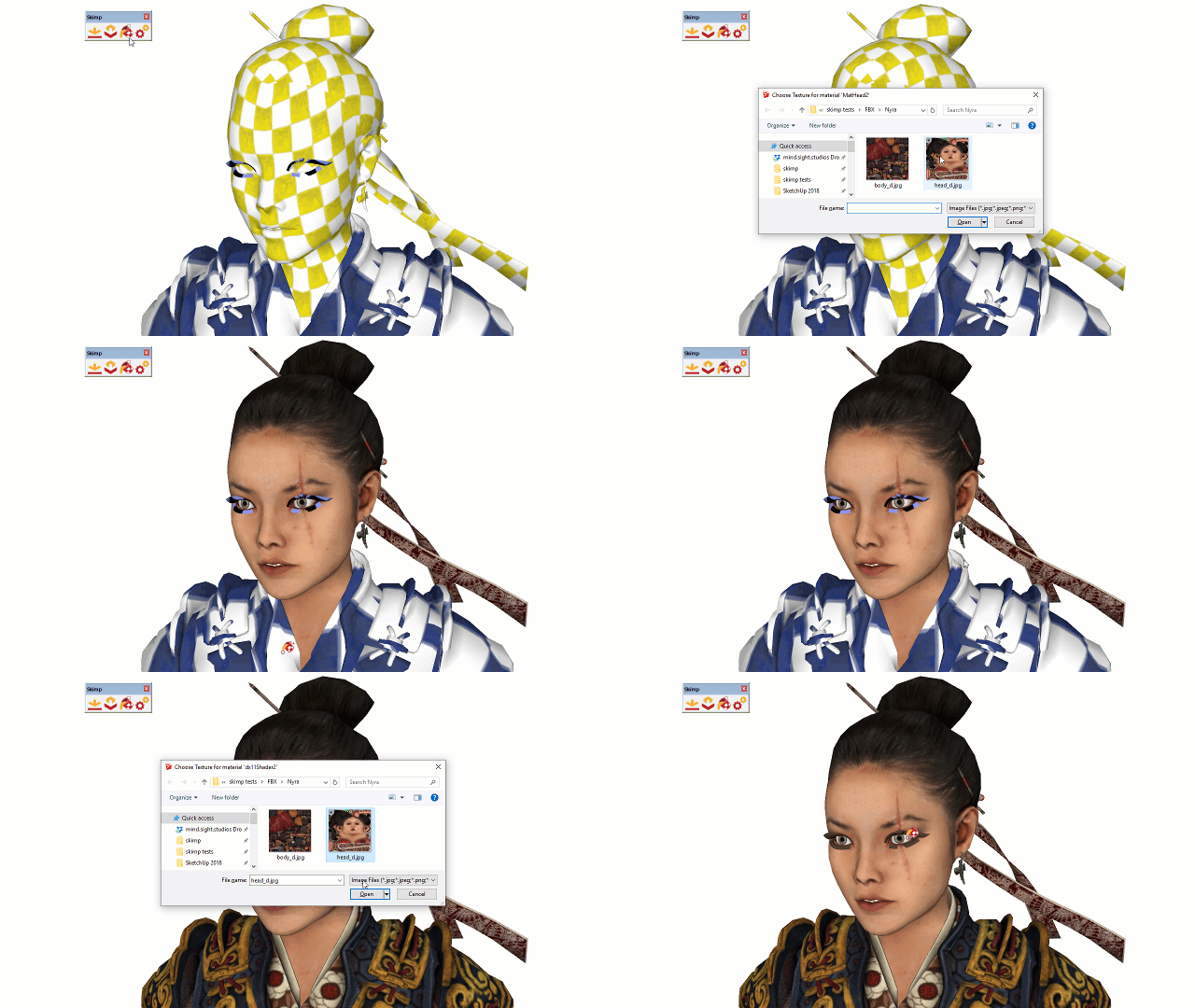
- Texture replacement: quickly swap texture maps without remapping
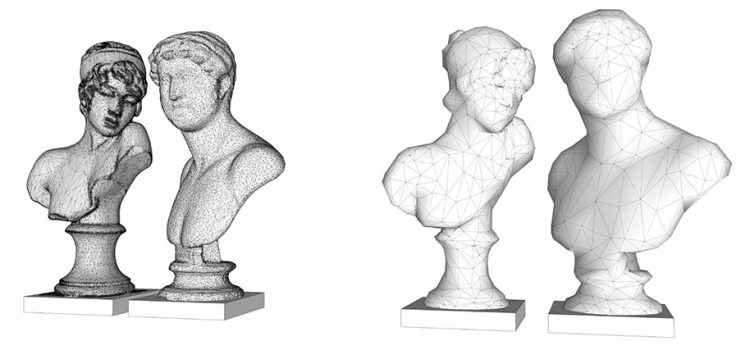
- Preview and compare: visually compare simplified vs. original model
- Performance boost: compare mesh complexity and file size after reduction
Before / After Optimization
Texture Replacement Workflow
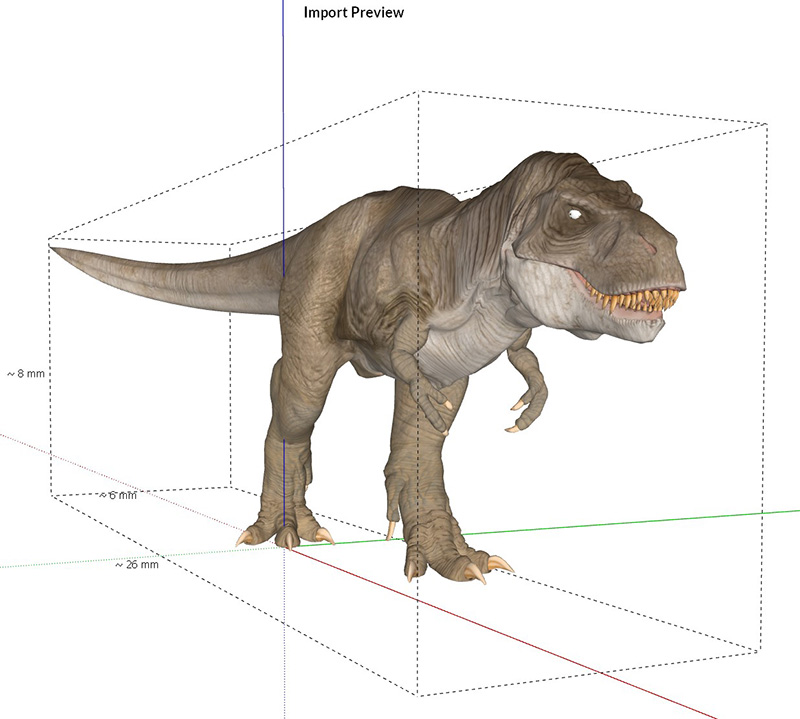
Large Model Compatibility
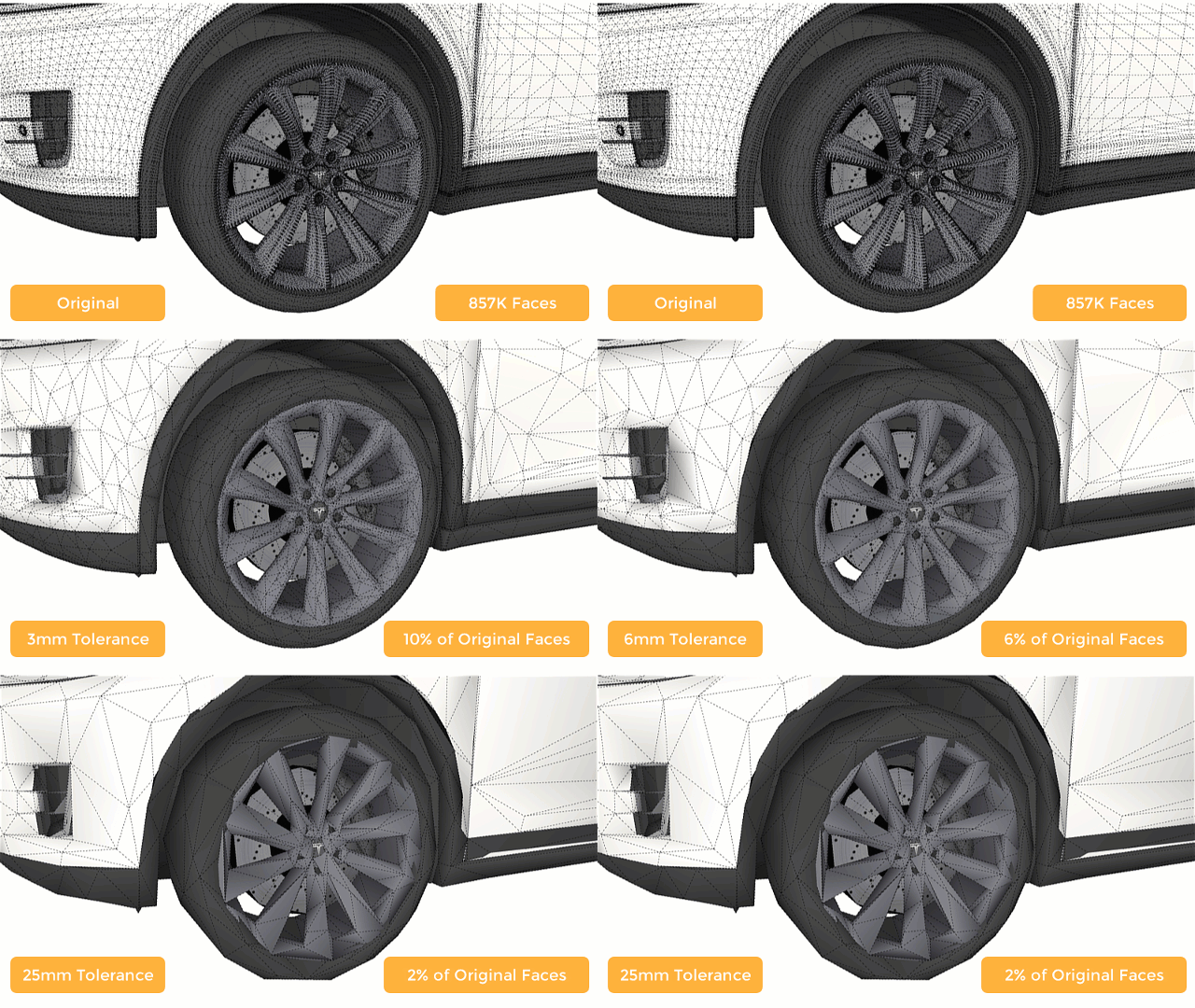
Tolerance / Reduction Control
Why the extension Matters for Real Workflow Performance
Heavy models slow down SketchUp significantly. the extension helps you:
- reduce unnecessary mesh detail and test orbit and selection in your scene
- choose a detail level appropriate to the asset and your available hardware
- prepare assets for animation or real-time rendering
- optimize imported marketplace assets for production modeling
Recommended Internal Links
Buy the extension for SketchUp (Official Purchase)
Buy the extension 2.0 for SketchUpAffiliate Disclosure: This page contains affiliate links. If you purchase through this link, NiceTowers may earn a commission at no additional cost to you.
Frequently Asked Questions
What does the extension do?
Skimp imports supported model formats, simplifies meshes and provides texture-replacement controls. Inspect the result before committing it to a project; these operations do not guarantee a particular frame rate or fix every geometry problem.
Will the extension reduce model quality?
the extension offers adjustable decimation tolerance, allowing you to balance polygon reduction and visual quality based on project needs.
Does the extension support texture workflows?
Yes. the extension allows for quick replacement of imported textures without remapping or rebuilding geometry.
Can the extension handle heavy models?
Skimp is designed for detailed assets, but workable model size depends on the source geometry, reduction settings and available memory. Test one asset on a copy of your scene before processing a large collection.
Skimp import and simplification workflow
Preview the asset, confirm scale and orientation, then compare a modest simplification with the original. Judge the result at the intended camera distance. Preserve important contours, material assignments and small details that remain visible. Polygon reduction is a balance: a smaller mesh is useful only when it still supports the required design and presentation.
1. Choose a source asset
Save the original file and test a copy of a furniture or vegetation asset. Decide which contours and material boundaries must remain visible at your presentation scale.
2. Open the import preview
Click Import Model, select a supported file and open it. In the preview, check the bounding-box dimensions against a known real dimension. Specify the source units and use the axis rotation controls if needed.
3. Adjust detail before insertion
Move the preview slider to compare detail levels, then import the selected result. Inspect silhouettes, surface shading and material assignments from the intended camera distance. Keep more detail where visible edges require it.
4. Check materials and textures
If an imported surface lacks its intended material, inspect its assignment before changing geometry. Use Replace Textures for incorrect textures or materials, then compare the corrected asset with the source.
5. Check desktop compatibility and activation
The developer currently lists Skimp support for SketchUp Pro 2020–2026 on Windows and Mac. Install the current RBZ using Extension Manager and follow the license instructions. Check the developer information for Skimp and our RBZ installation guide.
6. When simplification stops early
UV seams and hard-edge boundaries can restrict reduction. On a copy, change one preservation setting at a time, such as Maintain UVs or Maintain Normals, and inspect the visual cost. Higher tolerance may allow more reduction; it can also remove important detail.
Questions before choosing Skimp
What should I check before using this workflow?
Check scale, orientation, materials, silhouette and mesh detail. Read the current developer guidance and use a test copy to compare the result. Software tools support a modeling process; the final dimensions, geometry and project information still need to match the design you intend to communicate.
Where can I learn the next step?
Explore our SketchUp project tutorials, compare modeling tools or choose a format from the live course collection. Use a relevant lesson to practice a complete project instead of collecting extensions without a clear purpose.
Practice a complete SketchUp project
Use these Nice Tower lessons to practice installation and project modeling. They are related learning examples; check the specific developer demonstrations above for the exact extension operation.