Nice Tower · SketchUp tools and workflow guides
Profile Builder 4 for SketchUp
Profile Builder 4 can help you create reusable profiles and assemblies along controlled paths. This page brings together the existing demonstrations and resource links, a practical test workflow and related Nice Tower lessons. Choose one recurring project need, check the relevant requirements and compare a small result before adding the tool to your everyday setup.
Table of Contents
Profile Builder 4 for SketchUp – Parametric Profiles, Assemblies, and Smarter Modeling
If you work in SketchUp and repeatedly model items like railings, fences, frames, trims, walls, or architectural details, you have likely searched for terms like Profile Builder 4 for SketchUp, SketchUp Profile Builder, or parametric modeling in SketchUp. Profile Builder 4 is a professional SketchUp extension for building intelligent, repeatable assemblies from parametric profiles, helping reduce repetitive manual modeling on real projects.
At NiceTowers, we recommend Profile Builder 4 for designers and modelers who want a cleaner workflow, consistent geometry, and faster iterations—especially on projects with repeating elements and BIM-style structures.
Profile Builder 4 Overview (Video)
The following video gives a quick overview of how Profile Builder 4 creates smart, parametric elements in SketchUp.
What is Profile Builder 4?
Profile Builder 4 is a SketchUp extension that helps you create smart, parametric building elements using profiles and assemblies. Instead of manually copying, rotating, trimming, and fixing components, Profile Builder lets you generate consistent results along paths and guides—with control over spacing, orientation, structure, and materials. It also supports editable holes and non-destructive editing, so your models can adapt easily to design changes.
- Profiles: Build parametric profiles along edges and paths (walls, mouldings, framing, curbs, piping, roof details, and more)
- Assemblies: Generate repeated systems such as railings, fences, frames, cavity walls, stairs, and streetscapes
- Editable holes & openings: Cut and manage openings that remain editable even after modifying the member or assembly
- Smart-Path & extrusion: Build along almost any path while maintaining correct profile orientation and materials
- Libraries: Use and reuse your own profile and assembly libraries across multiple projects
If you want to expand this workflow with additional productivity tools, visit the NT Plugins collection for SketchUp, developed around practical modeling tasks and faster day-to-day work.
Profiles & Assemblies in Action (GIF Tutorials)
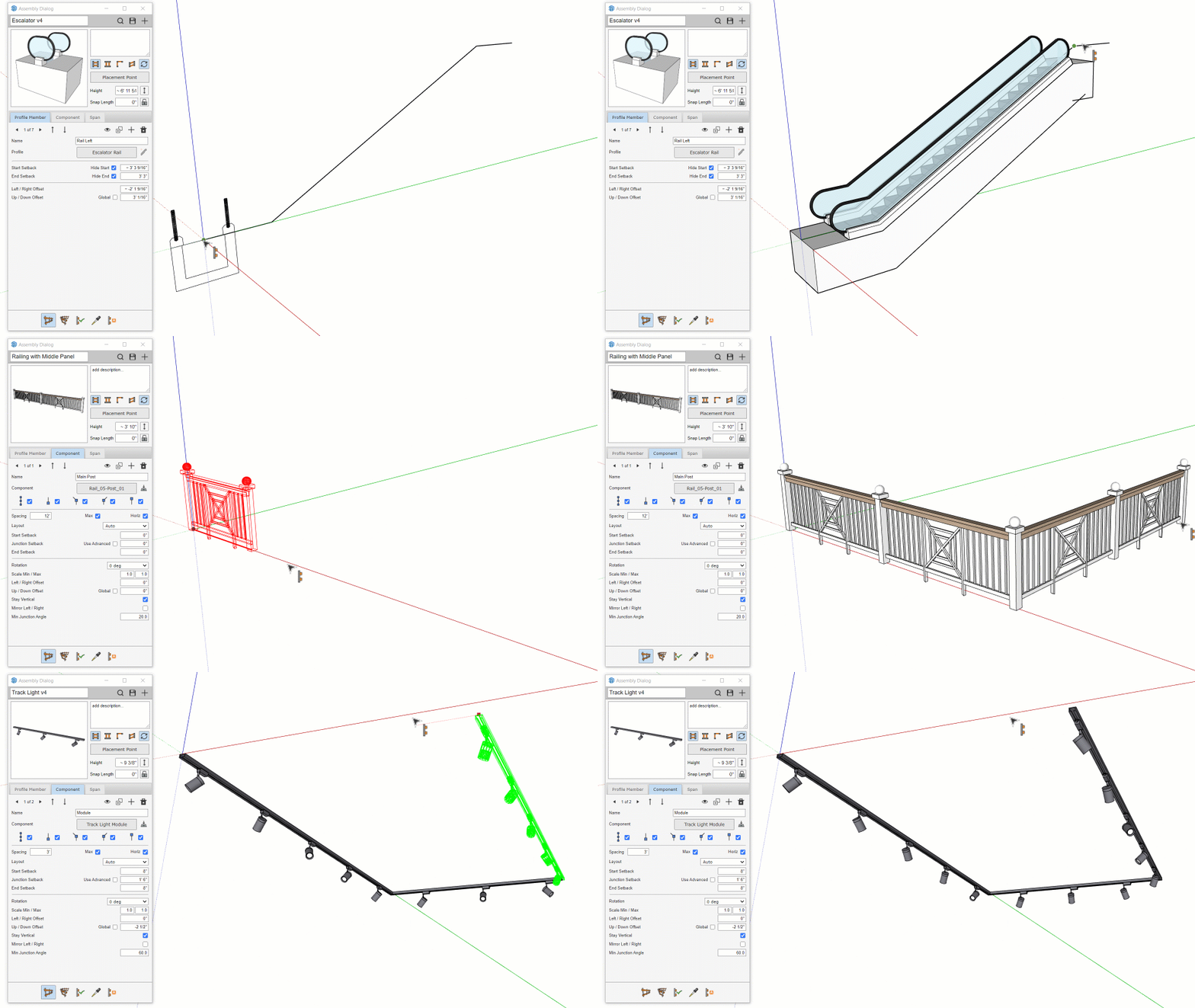
Assemblies along a Path
This example shows how a smart assembly can be distributed along a path, combining multiple parts into one parametric system.
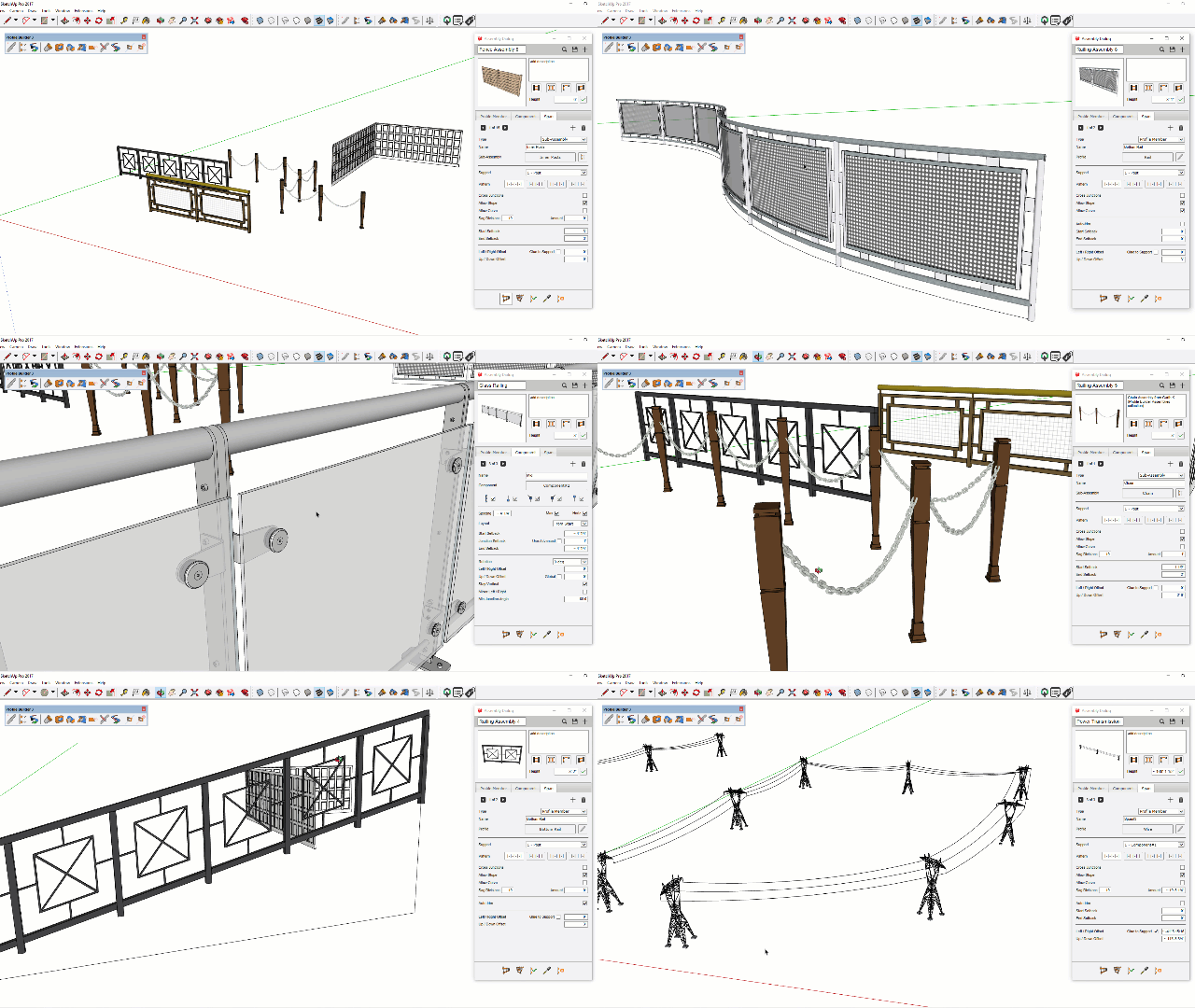
Spans / Repetition Workflow
Here, spans are used to create repeating elements quickly and consistently—ideal for railings, fences, and facade patterns when you need precise spacing and alignment.
Why Profile Builder 4 is Useful for Real Projects
1) Architectural details & facade patterns
Create repeating facade fins, trims, frames, and profile-based architectural elements without manual duplication. Profile Builder 4 improves speed and uniformity, especially when a client requests design changes or you need to test multiple design options.
2) Railings, fences, and balusters
Profile Builder is widely used as a SketchUp railing plugin because it simplifies repeated spacing and alignment, producing cleaner assemblies with fewer modeling errors and more control over parts and materials.
3) Interior design workflows
For interior modeling, you can generate paneling, wall trims, skirting boards, cabinets, shelving, and repeating decorative elements quickly—helpful for both design iteration and rendering. If you want to develop the complete workflow step by step, explore our online SketchUp courses for architects and interior designers.
4) BIM-style parametric workflows
Combined with quantity and reporting tools, Profile Builder 4 supports BIM-style workflows where geometry needs to stay editable while still reflecting structured elements (profiles, assemblies, and openings) that can be updated without remodeling from scratch.
After completing the model, you can also use SUAPP AI for SketchUp rendering and visualization to turn SketchUp views into presentation-ready concepts and explore visual variations more quickly.
Profile Builder 4 vs Default SketchUp Workflow
| Workflow | Default SketchUp | Profile Builder 4 |
|---|---|---|
| Repeating elements (railings, slats, trims) | Manual copy / rotate / fix | Parametric spans and assemblies |
| Consistency & design edits | Time-consuming changes and rework | Fast, non-destructive revisions |
| Openings / holes in elements | Manual edits and re-cutting | Editable holes that update with the member |
| Best suited for | One-off, simple modeling | Production work & repeat systems |
Profile Builder 4 Compatibility, License, and Trial
According to the official Profile Builder website, the extension requires SketchUp Pro 2017 Desktop or newer and supports both Windows and Mac. The commercial version is sold as a single-seat permanent license, and an official fully functional 30-day trial is available. Always confirm the latest compatibility, price, and license terms on the official purchase page before ordering.
Profile Builder Assemblies Free Download and Library
The Profile Builder assembly library helps you reuse customizable profiles and components instead of rebuilding common systems from scratch. Assemblies can combine multiple profiles and components into path-based objects such as railings, fences, cavity walls, stairs, roads, and cabinets. You can also create and save your own reusable profile and assembly libraries for future projects.
Looking for a Profile Builder assemblies free download? Use the developer’s official resources: the product includes free profile and assembly libraries, and the official site links to the the extension Assembly Library on SketchUp’s 3D Warehouse. Avoid unofficial or modified downloads because they may be unsafe, outdated, or unlicensed.
Related SketchUp Resources
Related plugins: BIM Bundle (Quantifier Pro + Profile Builder), and SketchPlus.
Buy the extension (Official Purchase)
Buy the extension for SketchUpAffiliate Disclosure: This page contains affiliate links. If you purchase through this link, NiceTowers may earn a commission at no extra cost to you.
Frequently Asked Questions
What is the extension used for in SketchUp?
the extension is used for parametric modeling in SketchUp—especially repeating elements like railings, fences, trims, frames, walls, and profile-based architectural details that need to stay editable.
Is the extension good for railings and fences?
Yes. It is commonly used as a SketchUp railing and fence workflow solution because it helps distribute repeated parts with consistent spacing, orientation, and materials.
Do I need the extension for interior design modeling?
If you model repeating interior details such as wall trims, paneling, skirting boards, shelving, or decorative frames, the extension can significantly speed up your workflow and make revisions easier.
Does the extension replace SketchUp native tools?
No. the extension extends SketchUp by adding parametric profiles, assemblies, and editable openings on top of native tools, so you can model smarter and adapt quickly to design changes.
Is there an official free download or trial of the extension?
Yes. The official developer offers a fully functional 30-day trial. For safety and licensing, download the trial and libraries only from the official Profile Builder website or its linked SketchUp 3D Warehouse resources.
Which SketchUp versions work with the extension?
The official requirement is SketchUp Pro 2017 Desktop or newer. The plugin is available for Windows and Mac, but you should confirm compatibility with your exact SketchUp and operating-system version before purchasing.
Build and verify a reusable Profile Builder workflow
1. Separate profiles from assemblies
A profile is the cross-section used to build a profile member along a path. An assembly combines configured profile members and components into a repeatable system. Start with one member before adding posts or repeated components; this makes it easier to diagnose placement and spacing.
2. Create a named profile from a face
Draw a small cross-section, select its face, open the Profile Builder dialog and choose New Profile. Give it a meaningful name. Build a short test member and inspect the dimensions and placement before saving it to your library.
3. Check assembly parts and axes
Prepare the profile members and components in their intended relative positions, create an assembly, and add each part with a clear name. Check offsets, setbacks and spacing on a short path. For component parts, the developer describes the red axis as forward along the path, blue as up and green as left. Adjust the component axes if the placement is wrong.
4. Reuse the correct library version
Use the existing official assembly-library link above. Profile Builder 4 can load PB3 profiles and assemblies, but some older assemblies need small component-placement adjustments. Inspect a library example in a saved test model before adopting it. The free libraries do not make the commercial extension free.
Installation and license information
Use the developer information for Profile Builder 4 to confirm current editions, requirements and support. Check your exact SketchUp release and operating system. A trial, subscription and permanent license may have different conditions. Follow our RBZ installation guide for orientation, then follow the instructions specific to the chosen extension.
Questions before choosing Profile Builder 4
What should I check before using this workflow?
Check placement point, path direction, component spacing and editable openings. Read the current developer guidance and use a test copy to compare the result. Software tools support a modeling process; the final dimensions, geometry and project information still need to match the design you intend to communicate.
Where can I learn the next step?
Explore our SketchUp project tutorials, compare modeling tools or choose a format from the live course collection. Use a relevant lesson to practice a complete project instead of collecting extensions without a clear purpose.
Profile Builder tutorials from Nice Tower
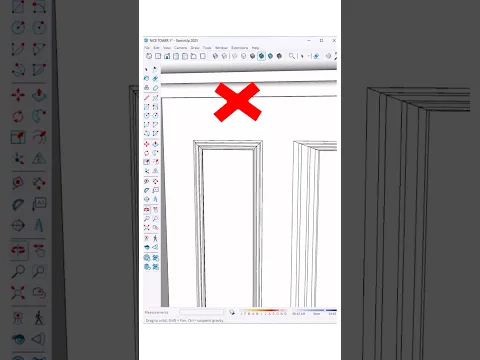
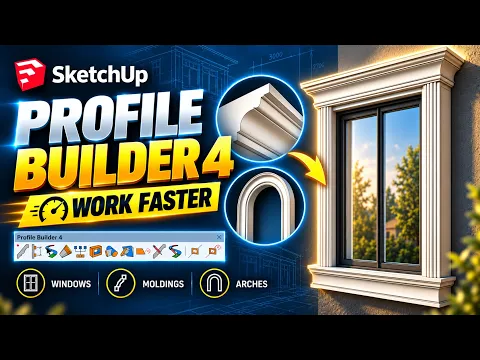
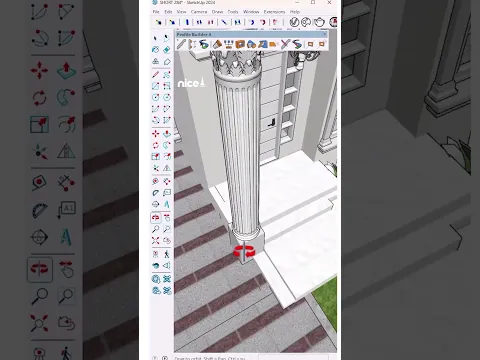
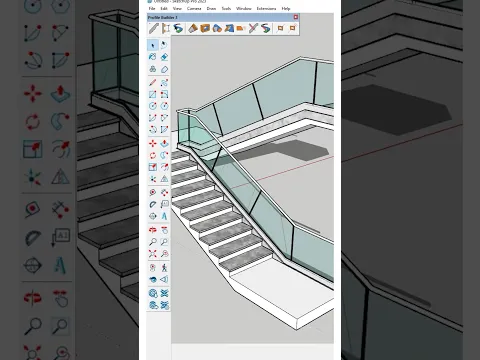
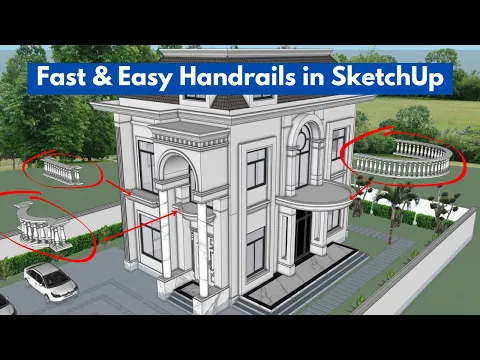
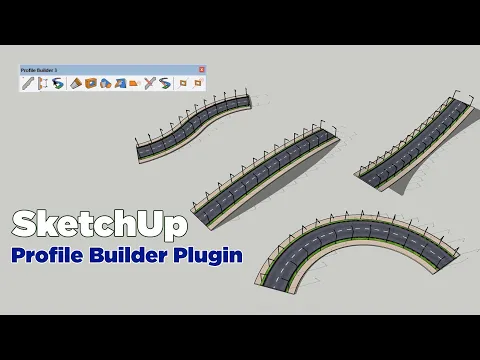
Watch the full Profile Builder 4 window-frame tutorial, then explore short demonstrations of detailing, classical columns and glass fences. These videos are from the Nice Tower channel. Some short demonstrations use earlier Profile Builder versions; check the interface and settings in your installed version.