Nice Tower · SketchUp tools and workflow guides
Free Plugins for SketchUp
Choose a SketchUp resource by the task: architectural elements, a bend along a curve, an angle-based bend or terrain work. The existing cards lead to guides and download destinations. Check the specific edition, license and dependencies before installing; this collection also includes built-in tools and separate visualization resources.
Table of Contents
Free Plugins for SketchUp Download (2026)
Find Free Plugins for SketchUp for architectural modeling, curved geometry and everyday design tasks. Compare tools such as 1001bit Tools, Shape Bender and TrueBend, then use the links below to open a plugin guide or its download destination.
If you are looking for a SketchUp plugins free download, start with the task you need to complete. A bending extension, an architectural toolset and a terrain tool solve different problems. Install the extensions you need rather than adding every plugin to your workspace.
This collection brings together SketchUp extensions, learning resources and related tools. Before downloading, check the developer, license, required dependencies and supported SketchUp versions. A listing on this page does not mean every tool is compatible with every release, including SketchUp 2026.
How to Download and Install SketchUp Plugins
Use the tutorial and checklist below to download a SketchUp extension and install an RBZ file in the desktop application.
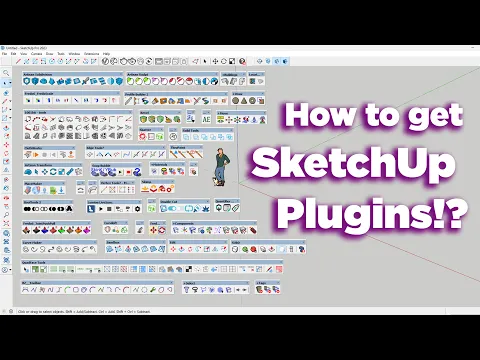
Watch the installation tutorial
Follow the Nice Tower video for a step-by-step demonstration.
Watch tutorial on YouTube ↗- Open the plugin guide or download page and check its license and compatibility.
- Download the extension from a source you trust. For a manual installation, locate the .rbz file.
- In SketchUp, open Extension Manager, choose Install Extension, and select the RBZ file.
- Follow any developer instructions for dependencies, activation or restarting SketchUp.
- Try the tool in a small test model before using it in an important project.
For screenshots and more help, use our SketchUp plugin installation guide.
Best Free Plugins for SketchUp to Download in 2026
Choose a tool by the result you want to achieve: architectural components, bending, curved forms or terrain work. The buttons preserve the existing guide and download destinations; review the requirements at the destination before installing.
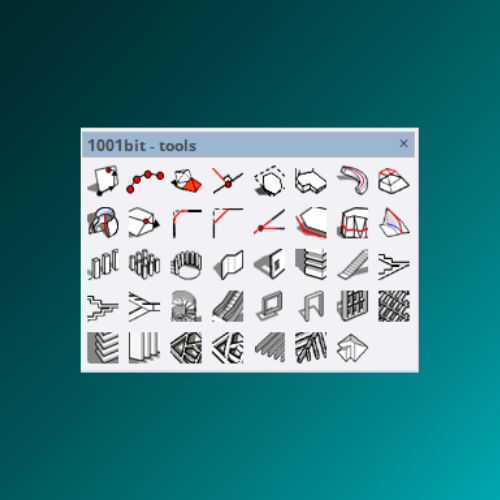
1001 bit tools Plugin
Explore 1001bit Tools for architectural modeling tasks. Open the guide to check the available edition, installation steps and download options.
Download 1001bit Tools
Shape Bender Plugin
Explore Shape Bender for curved modeling workflows. Read the setup instructions and model-preparation steps before using it in a project.
Download Shape Bender
True Bend Plugin
TrueBend bends groups and components to a specified degree while preserving their original length. Use the guide to review the workflow and requirements.
Download True Bend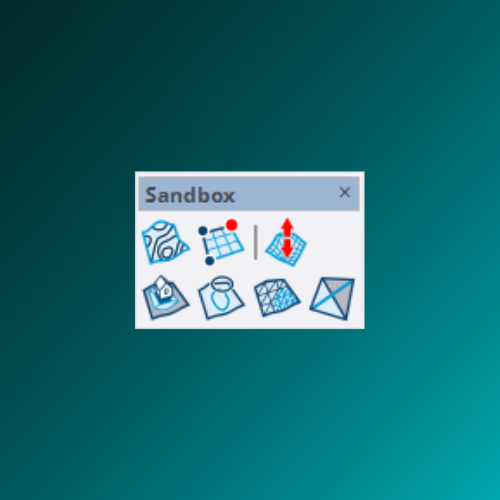
Sandbox Plugin
Open the Sandbox Tools guide for terrain-related SketchUp workflows and instructions for getting started.
Click here
Sketchup Game
A separate, optional resource: open the Sketchoids listing on Extension Warehouse to review its details.
Download
D5 Lite
A related visualization resource. Visit the official D5 Lite page for current availability, requirements and download options.
Download D5 LiteSketchUp Plugin Installation: Common Questions
Which free plugins should I choose first?
Choose a tool for a task you repeat. Compare 1001bit Tools for architectural modeling, Shape Bender and TrueBend for bending workflows, and the Sandbox guide for terrain work. Start with one tool and learn its setup before adding more.
Will these plugins work with my SketchUp version?
Compatibility varies by extension and release. Check the developer’s current listing for your SketchUp version, operating system and any dependencies. Do not assume that a plugin supports SketchUp 2026 because it appears in a 2026 collection.
Why does a downloaded plugin not appear?
Check whether it is enabled in Extension Manager, whether the download is an installable RBZ package, and whether the developer requires another library. Some extensions add commands to menus instead of opening a toolbar automatically.
Are all download links official developer links?
No. This collection includes Nice Tower Pro guides, an Extension Warehouse listing, an official D5 page and related resource links. Check the source and license before installing.
Do free plugins permit unrestricted commercial use?
No. Pricing and license permissions are different. Review the individual extension’s license before using it in commercial work or redistributing its files.
Put Your Free Plugins to Work
Choose a learning path and use your new tools in a real project. These guides stay on Nice Tower, so you can continue learning before choosing your next download.
Model an Interior
Follow practical interior-design videos for furniture, rooms and decorative details.
Start interior tutorialsBuild an Exterior
Practice architectural forms, facades and outdoor design with guided examples.
Explore exterior tutorialsFind a Ready-to-Use Model
Browse SketchUp assets for your next architectural or interior scene.
Browse 3D modelsGet Live Instructor Support
Compare Team, Premium Duo and VIP Private SketchUp classes.
Compare live coursesTo get more free plugins, Visit Nice Tower Pro

SketchUp plugin practice guides
Follow a focused workflow with Nice Tower videos, real tutorial images, practical examples and troubleshooting.
Shape Bender: curved facades and railings
Prepare a straight source and reference path, inspect the bend, and compare a curved facade or railing result.
Read the Shape Bender tutorial →FixIt101: repair imported models
Protect the original, isolate a repair copy and check the geometry before using it in an architectural project.
Read the FixIt101 repair guide →Helix Along Curve: spiral stairs
Calculate the tread arrangement, create a rising handrail path and inspect the stair from multiple views.
Read the spiral stair tutorial →Choose Free Plugins for SketchUp for a specific task
Start with the modeling task you need to improve, such as architectural details, bending geometry or preparing visualization. Compare the six resources above by purpose rather than installing every extension at once. Free Plugins for SketchUp are most useful when they solve a clear problem in your own project.
Test the result before using it across a project
Try Free Plugins for SketchUp on a small copy of your model. Check the geometry they create, how easily you can edit it and whether the result supports your intended presentation. Keep a working backup and record useful settings. A quick operation is valuable only when its output remains manageable.
Check installation and compatibility
Before installing Free Plugins for SketchUp, read the linked developer instructions and check the stated software compatibility and license terms. Use the installation tutorial above for orientation, then follow the instructions for the particular resource you selected. If the page describes a built-in tool or a visualization service, treat it as that type of resource rather than assuming it is an installable extension.
6 practical checks for Free Plugins for SketchUp
For NT Plugins, watch the Nice Tower download and installation tutorial alongside the setup instructions.
The six resources in this collection include architectural tools, bending workflows, terrain guidance and optional visualization resources. Their licensing and availability differ. Check the destination before downloading and distinguish a permanently free extension from a trial, a built-in tool or a separate service. Choose the resource that addresses your immediate modeling problem.
1. Define a small test before installing
For an architectural toolset, compare 1001bit Freeware with the separately paid Pro edition in the linked guide. For bending, decide whether your model must follow a path or bend through an angle before selecting a tool. Keep a copy of the test geometry and use the existing guide buttons to review setup and licensing.
2. Prepare the model and selection
Confirm units, object scale and component organization before running a new operation. Name the objects that belong to the test and isolate them from unrelated geometry. Check the active editing context so the tool receives the intended selection. A well-prepared starting model makes it easier to identify whether an unexpected result comes from input geometry, settings or the operation itself.
3. Compare an initial result with the original
After installing the selected RBZ, confirm the extension is enabled and check the developer’s menu or toolbar instructions. An absent button is not proof that installation failed. Record the exact SketchUp version, operating system, extension version and error message before troubleshooting. Do not treat an older compatibility list as a confirmed 2026 support statement.
4. Check a revision and a saved file
Change one relevant dimension or placement, inspect the update and save a test version. Reopen that file and check the model again before adopting the technique throughout a larger project. Confirm that names, materials and visibility remain clear to another person. Record the settings you used so the result can be reproduced instead of relying on a remembered sequence of clicks.
5. Review installation and license information
Use the developer information for free plugins to confirm current editions, requirements and support. Check your exact SketchUp release and operating system. A trial, subscription and permanent license may have different conditions. Follow our RBZ installation guide for orientation, then follow the instructions specific to the chosen extension.
6. Apply the workflow to a real design
Once the small test is repeatable, use it on a limited part of your design and assess the time required for both modeling and cleanup. free plugins is useful when it helps you choose free extensions and related resources for a defined modeling need. Compare the complete task, including revisions, presentation and delivery. Expand the technique only after the result meets the practical requirements of your own project.
Questions before choosing free plugins
What should I check before using this workflow?
Check the actual license, dependencies and supported SketchUp version. Read the current developer guidance and use a test copy to compare the result. Software tools support a modeling process; the final dimensions, geometry and project information still need to match the design you intend to communicate.
Where can I learn the next step?
Explore our SketchUp project tutorials, compare modeling tools or choose a format from the live course collection. Use a relevant lesson to practice a complete project instead of collecting extensions without a clear purpose.
Practice a complete SketchUp project
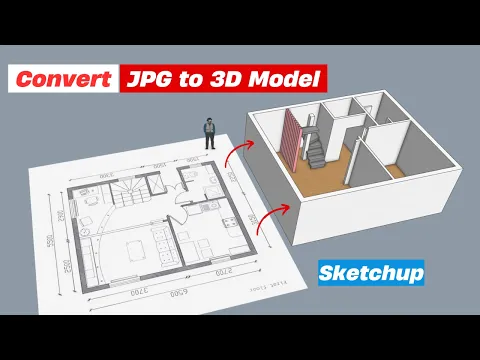
Use these Nice Tower lessons to practice installation and project modeling. They are related learning examples; check the specific developer demonstrations above for the exact extension operation.