Nice Tower · Practical design guide
SketchUp AI Rendering: Powerful AIR Guide 2026
SketchUp AI rendering with SUAPP AIR helps explore a visual direction from an existing scene. Prepare the camera view, compare materials and atmosphere, and check the output against the measured model before presenting it.
On this page
SketchUp AI Rendering with SUAPP AIR: Complete Workflow Guide
SUAPP AIR is an AI rendering platform that can turn a SketchUp viewport, screenshot, sketch, or uploaded image into a finished visualization. Instead of configuring a traditional render engine from the beginning, you provide a clear design image, select a style, and generate visual directions in the cloud. This guide explains how to prepare a SketchUp model, create more consistent AI renders, refine the result, and decide where SUAPP AIR fits into an architectural or interior-design workflow.
SUAPP AIR visualization example
What Is SUAPP AIR?
For SketchUp AI rendering, SUAPP AIR is the AI Render product within the wider SUAPP AI ecosystem. It is available through a web workflow and supported application integrations, including a SketchUp plugin on eligible plans. It reads the composition and linework of an input image, then generates a new visualization according to the selected rendering mode and style. The goal is rapid design exploration rather than physically calculating every light bounce and material property like a conventional renderer.
The official workflow supports several ways to bring in an image: capture the current model view, upload an image from the device, drag and drop a file, or paste an image. After importing, you select a style and create the result. This makes it practical when you already have a SketchUp model but need to explore a photorealistic direction, presentation mood, season, lighting condition, or material idea without rebuilding the scene in a separate rendering application.
SketchUp AI rendering does not remove the need for design judgment. A strong result still depends on the quality of the source view, camera composition, visible geometry, prompt, and the amount of change requested. Treat SUAPP AIR as a visual design assistant: it can accelerate ideation and presentation, but you should check every generated image before sharing it as an accurate representation of the project.
SketchUp AI Rendering: what AIR can help you create
Exterior Visualization
Test façade materials, landscaping, weather, atmosphere, and presentation styles from a clear SketchUp exterior view.
Interior Rendering
Explore furniture language, material palettes, lighting mood, and styling while retaining the main room composition.
Landscape Concepts
Develop visual directions for planting, paths, site elements, water, and seasonal atmosphere during early design.
Sketch to Render
Transform a hand sketch, line drawing, or simple massing view into a more developed visual concept.
Design Variations
Create alternatives for client discussion without manually rebuilding every material or mood option.
Image Editing
Refine a selected area, extend the canvas, remove distractions, change atmosphere, or enhance an existing result.
Step-by-Step SketchUp AI Rendering Workflow
1. Clean the Visible Model
Remove stray edges, duplicate faces, guides, annotations, and unwanted objects visible from the selected camera. SketchUp AI rendering responds to the source image, so distracting linework can influence the generated result.
2. Choose a Clear Camera
Use a readable one-point or two-point perspective. Avoid severe distortion, an extremely wide field of view, or a subject that occupies only a small part of the frame.
3. Establish the Main Design
Keep the important walls, openings, roof forms, furniture, and primary landscape elements visible. AI is more reliable when the composition already communicates the intended spatial structure.
4. Import the View
Capture the current view from the plugin or use upload, drag-and-drop, or paste in the supported interface. Use a sharp image with enough resolution to preserve important boundaries.
5. Select Mode and Style
Choose a rendering direction appropriate to the project rather than selecting a dramatic style only because it looks impressive. Architecture, interiors, landscape, and artistic studies need different visual treatment.
6. Write a Focused Prompt
Describe project type, materials, lighting, mood, context, and camera intention. Keep the prompt consistent with what is already visible instead of asking the AI to redesign everything at once.
7. Generate and Compare
For SketchUp AI rendering, create alternatives and compare structure, material behavior, openings, furniture, and unwanted changes. Select the version that preserves the design most accurately, not merely the most dramatic image.
8. Refine and Export
Use available editing tools for local corrections, enhancement, cropping, or expansion. Review the final image at full size before adding it to a portfolio or client presentation.
How to Get Better SketchUp AI Rendering Results
Start with a strong composition
Place the main subject near the visual center and give it enough space in the frame. If a building or interior feature is distant, partially hidden, or cropped awkwardly, the AI has less information to interpret. Horizontal compositions often work well for architectural presentation, but the correct aspect ratio should ultimately match the destination: website hero image, presentation slide, portfolio page, or social post.
Control what the AI is allowed to change
The more specific the design must remain, the more conservative your instructions should be. Preserve the massing, camera, window locations, ceiling height, furniture arrangement, and key materials when accuracy matters. Request one meaningful change at a time—such as warmer lighting or a new floor material—so you can identify what improved and what moved away from the original design.
Use descriptive prompts, not keyword piles
A useful SketchUp AI rendering prompt connects the project type with visible materials and lighting. For example: “Contemporary residential living room, natural oak wall panels, light limestone floor, soft indirect ceiling lighting, neutral daylight, realistic architectural photography, preserve the camera and furniture layout.” This communicates a coherent direction more effectively than a long list of unrelated styles.
Inspect architectural details
AI images can look convincing at first glance while changing stairs, railings, doors, window divisions, furniture legs, reflections, or structural details. Zoom in before approval. If the visualization must communicate an exact design, compare it side by side with the SketchUp view and correct or regenerate any altered feature.
Separate concept approval from technical approval
SUAPP AIR is especially useful for discussing atmosphere, palette, and early visual direction. It should not be used as the only source for dimensions, quantities, construction, construction details, or code compliance. Keep the original SketchUp model and project documents as the technical source of truth.
Useful SUAPP AIR Editing Tools
The current SUAPP AIR feature set includes tools for focused image improvement. Availability can depend on the active plan and may change, so confirm the current feature table before purchase.
Inpainting
Select an area and regenerate it for a focused correction without replacing the entire image.
Outpainting
Extend the image beyond its original boundaries when a wider composition or additional context is needed.
Material Replacement
Explore a different finish in a selected region while attempting to retain the broader composition.
Magic Remover
Remove an unwanted object or visual distraction from a generated or uploaded image.
Image Enhancement
Improve perceived clarity and detail before presentation or export at a larger output size.
Ambiance Transfer
Use a reference mood or atmosphere to guide the appearance of the current visualization.
SUAPP AIR vs Traditional SketchUp Rendering
| Workflow | SUAPP AIR AI Rendering | Traditional Render Engine |
|---|---|---|
| Initial setup | Can begin from a viewport, screenshot, sketch, or image | Usually requires materials, lights, environment, and render settings |
| Best use | Concept exploration, rapid variations, mood and presentation | Controlled final visualization and repeatable technical setup |
| Design accuracy | May reinterpret visible details and geometry | Follows the modeled scene and configured assets more directly |
| Iteration | Fast generation of visually different alternatives | More controlled but changes may require additional scene work |
| Hardware | Cloud-based generation reduces dependence on local rendering hardware | Often depends more heavily on local GPU/CPU or a render farm |
| Recommended approach | Use for ideas and fast visual development | Use when precision, repeatability, and exact scene control are essential |
These approaches do not need to compete inside one studio. You can use AI rendering to select a visual direction, then reproduce the approved materials and lighting in a conventional renderer when the final image requires strict control. For fast SketchUp AI rendering concept work, the SUAPP AIR output itself may be enough after careful review and editing.
SUAPP AIR Video Tutorials
The tutorials below demonstrate practical SketchUp AI rendering workflows. YouTube is loaded only after a play button is selected, reducing unnecessary third-party work during the initial mobile page load.
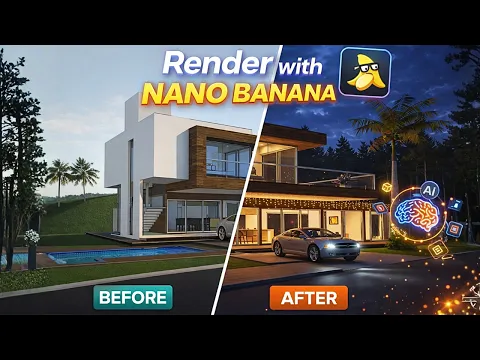
Nano Banana Rendering Workflow
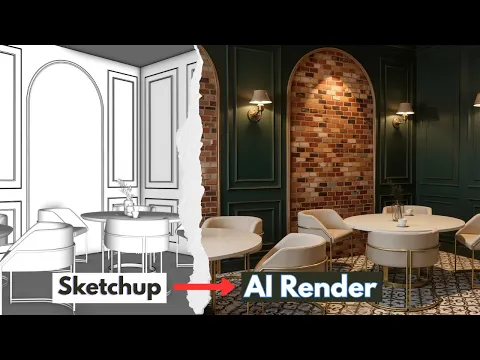
Interior Rendering with SUAPP AIR
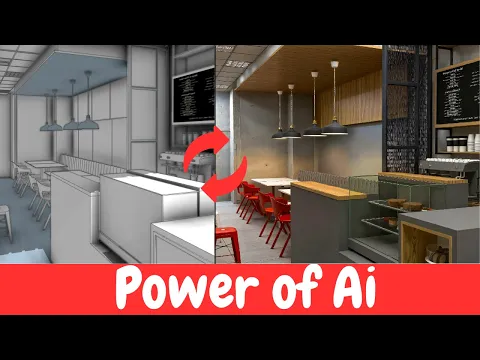
SketchUp AI Rendering Workflow
SUAPP AIR Plans, Credits, and SketchUp Access
SUAPP AI uses plans and credits, and its offers can change. The official pricing comparison currently distinguishes web access from plans that include application integrations. If your purpose is to use SUAPP AIR directly with SketchUp, confirm that the selected plan explicitly includes the SUAPP AIR SketchUp plugin. Do not select a plan based only on the total number of credits.
Before subscribing, compare the billing period, monthly credit allowance, image storage, supported output types, editing tools, and the applications included. Also confirm how many credits your preferred generation mode uses. Visit the official SUAPP AI pricing page for current details rather than relying on an old price quoted in an article.
Related SketchUp and AI Resources
Frequently Asked Questions
What is SUAPP AIR?
Does SUAPP AIR work with SketchUp?
Is SUAPP AIR free?
Can SUAPP AIR replace a traditional renderer?
How should I prepare a SketchUp model for AI rendering?
Why does an AI render change my design?
Can I use SUAPP AIR for interior rendering?
Can I use generated images commercially?
Start Your SketchUp AI Rendering Workflow
Use SUAPP AIR to explore render directions from your SketchUp view, then review every output carefully before presenting it as the final design.
Affiliate disclosure: NiceTowers may earn a commission if you purchase through our affiliate link, at no extra cost to you.
Return the selected AIR direction to the measured model
Choose one concept and list the actual material and lighting decisions it suggests. Update those decisions in the SketchUp model, then export a fresh view. Count openings and check room boundaries in the AI output before sharing it. For a more controlled final scene, continue with D5 rendering; for a new visual brief without a source scene, use the AIC concept guide.