
Nice Tower · Practical design guide
Lupa AI: Powerful Image Enhancement Guide 2026
Use Lupa AI to test enhancement of an exported render or architectural image. Compare the source and result at full size, especially window frames, repeated details, material boundaries and text. Choose output dimensions for the intended presentation; a larger image does not prove that the design or reconstructed detail is accurate.
On this page
Lupa is an AI image upscaler, image enhancer and creative platform designed to improve image quality, recreate missing detail and generate high-resolution visual content. Also searched as Lupa Upscaler, LupaAI and Lupa Image Enhancer, it now goes far beyond simple image enlargement.
The current Lupa platform combines AI image enhancement with image generation, image editing, alternative camera angles, video generation, video upscaling and additional creative tools. For architects, interior designers and visualization artists, its specialized render-enhancement models are especially relevant.
Affiliate disclosure: NiceTowers may earn a commission when you access Lupa through our referral link, at no additional cost to you.
See What Lupa Upscaler Can Do
Drag the slider to compare the original image with the enhanced result. The Before image is on the left and the Lupa result is on the right.
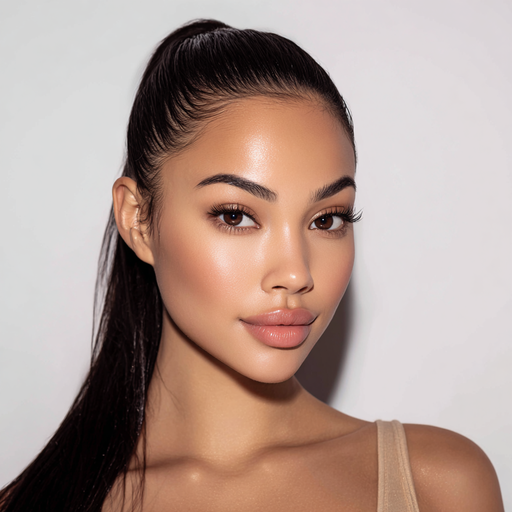
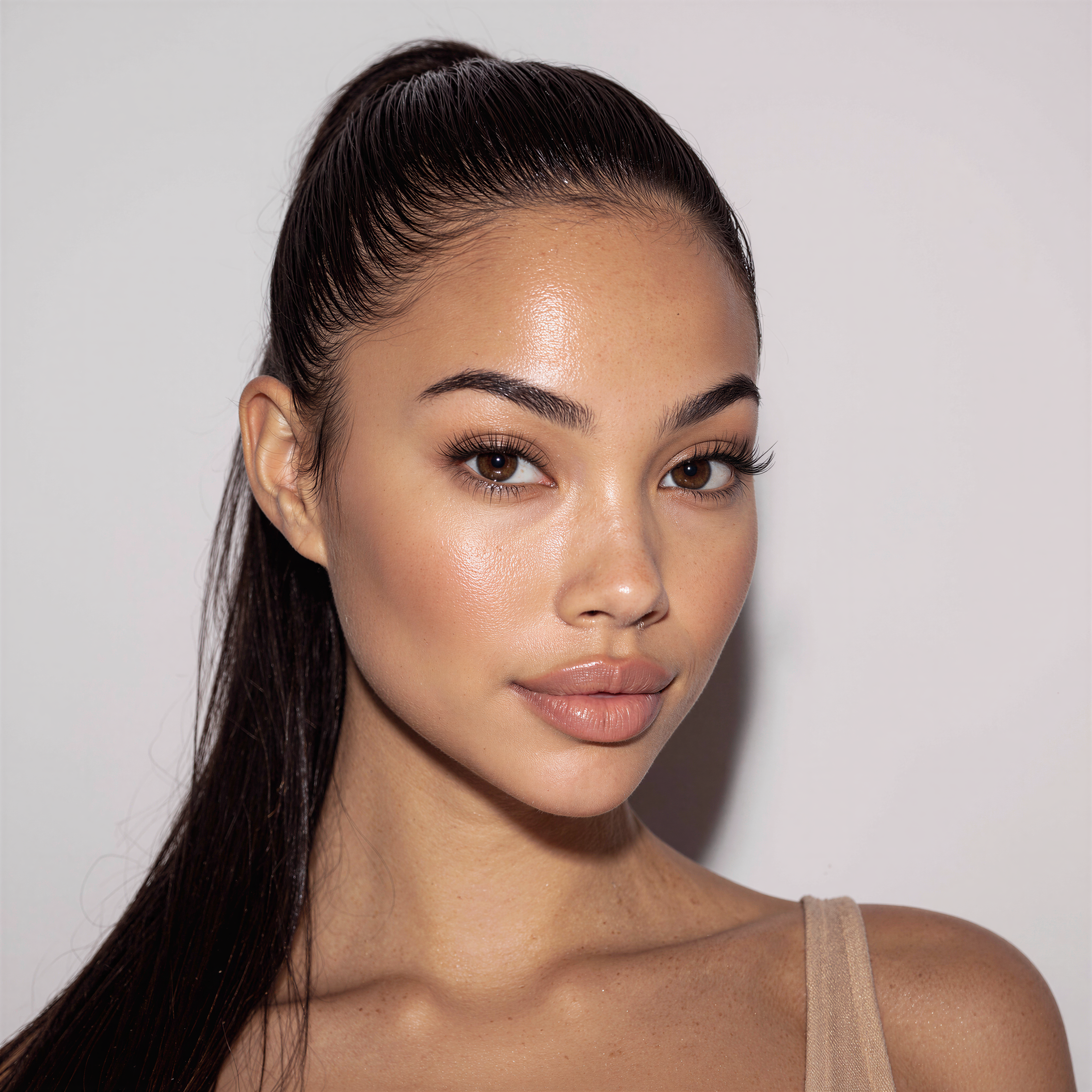
Move the divider left or right to inspect changes in detail, sharpness, texture and overall image quality.
Another Lupa Enhancement Example
Image enhancement can be especially useful when a source image lacks detail or needs to be prepared for larger presentation. Click the comparison below to inspect it at full size.
What Is Lupa?
Lupa is an AI-powered creative platform built around image enhancement and visual-content generation. Its image enhancer can improve resolution, refine textures, restore details and prepare images for larger output.
Lupa is no longer only an image upscaler. The platform now includes image generation, image editing, alternative-angle generation, video generation, video enhancement and other AI-assisted visual workflows.
This broader toolset is particularly useful to graphic designers, photographers, e-commerce teams, content creators, architects, interior designers and 3D visualization artists who regularly need higher-quality images without returning to the original scene or production workflow.
Lupa at a Glance
- AI image upscaler: improve resolution while reconstructing visible detail.
- AI image enhancer: use different models according to the type of source image.
- 4K, 6K and 8K output: select a high-resolution target for enhanced images.
- Architectural render enhancement: improve realism, textures and presentation quality.
- Image generation and editing: create or modify visuals inside the same platform.
- Video workflows: generate and enhance video content using supported tools.
How to Use Lupa Image Upscaler
The basic Lupa image-enhancement workflow is straightforward and does not require advanced technical knowledge.
- Open the Lupa image enhancer and upload the image you want to improve.
- Choose an enhancement model based on the type of image and the amount of change you want.
- Select a target output resolution such as 4K, 6K or 8K.
- Run the enhancement process and compare the generated result against the source image.
- Inspect important areas carefully before using the final result, particularly faces, architectural geometry, text, product edges and other accuracy-sensitive details.
AI enhancement is different from normal image resizing
Traditional resizing mainly increases pixel dimensions. An AI image enhancer can reconstruct textures and details that were not clearly visible in the original image. That can create significantly stronger results, but generated details should be reviewed when accuracy matters.
Lupa Enhancer Models Explained
The current Lupa image enhancer offers several specialized models. This matters because an architectural render, portrait and old photograph should not necessarily be enhanced in the same way.
Precision
Designed for accurate upscaling with minimal invented detail. This is a useful starting point when preserving the source image closely is important.
Creative
Generates additional visual detail to create a sharper and more enhanced result when exact fidelity to every original pixel is less important.
Real Skin
Focuses on improving skin texture while avoiding the excessively smooth or artificial appearance common in some AI-enhanced portraits.
Classic
Intended for realistic materials and interiors, making it especially relevant to interior design and architectural visualization.
Flux
A legacy creative model intended for more stylized and interpretive image enhancement.
Realistic
Designed to transform rendered imagery into more lifelike visuals, making it one of the most relevant Lupa models for architectural renders.
Old Photos
Intended for restoring and enhancing older photographs where sharpness, detail or overall image quality has degraded.
Can Lupa Upscale Images to 4K, 6K and 8K?
Yes. Lupa’s current image enhancer provides 4K, 6K and 8K output resolution options. This is more precise than describing the current service simply as a fixed 4× or 8× image enlargement tool.
A practical choice for high-resolution digital presentations, portfolios, web content and many professional visualization workflows.
Useful when you need additional resolution for cropping, larger presentation boards or detailed visual output.
Suitable for very high-resolution output where maximum pixel dimensions and enhanced visible detail are important.
8K does not automatically mean better accuracy
Higher resolution gives you more pixels, but model selection still matters. In architecture, preserving geometry, materials and design intent may be more important than simply choosing the largest resolution.
Lupa for Architecture, Interior Design & 3D Rendering
For an architectural render, keep the original export and test one enhancement setting before processing the full presentation set. Inspect repeated windows, railing spacing, reflections and texture scale against the source. If enhancement invents geometry or changes a specified material, use the measured model and source render to resolve the discrepancy.
Lupa’s Realistic model is designed to transform rendered imagery into more lifelike images, while Classic focuses on realistic materials and interiors. Precision is a useful alternative when maintaining the original geometry and composition closely is more important than creating additional texture.
Architectural Renders
Enhance final render exports while improving perceived texture, sharpness and presentation quality.
Interior Visualization
Improve fabrics, furniture, finishes, wall materials, reflections and fine details in interior renders.
Landscape Rendering
Enhance vegetation, terrain, outdoor furniture and environmental details in landscape-architecture images.
SketchUp Presentation
Improve exported SketchUp or rendering-engine images before portfolio, presentation-board or client use.
AI Architecture Images
Enhance architectural concept images generated through AI-assisted design and rendering workflows.
Portfolio Images
Prepare higher-resolution project images for websites, presentations, social media and digital portfolios.
Is Lupa Free?
Before starting a Lupa enhancement, check whether the current account offer provides a trial, introductory tokens or paid access. A free trial, if offered, is different from an unrestricted free plan. Confirm download limits and usage terms before promising a client deliverable.
Lupa’s offers and plan conditions can change over time. The safest approach is to check the current official platform before starting, because available introductory access, trial conditions, token allowances and included features may change.
Use the official Lupa platform
Some users search for terms such as Lupa mod APK or unlocked versions. For account security, payment safety and access to current AI models, use the official Lupa platform rather than modified third-party applications.
Lupa Pricing in 2026
Lupa uses a token-based subscription model. On the official pricing page’s yearly-billing view at the time of this August 2026 update, the following plan levels are displayed.
| Plan | Displayed Monthly Equivalent | Tokens per Month | Best For |
|---|---|---|---|
| Try | $10 / month | 1,200 | Entry-level use of image enhancement and selected creative tools. |
| Pro | $20 / month | 3,500 | Professional image enhancement and broader image/video workflows. |
| Premium | $41 / month | 8,000 | Higher-volume creative production and increased concurrent-generation capacity. |
| Business | $81 / month | 24,000 | Heavy professional or business workflows requiring a substantially larger monthly token allocation. |
Pricing may change
These figures reflect the yearly-billing view shown by Lupa when this guide was updated. Lupa states that these plans are billed annually and charged in EUR. Pricing, tokens, supported models, included features and promotions can change.
Lupa Is More Than an Image Upscaler
Users searching for Lupa tool may expect more than image enhancement. The current platform includes several complementary AI workflows.
Image Generation
Generate new visuals from prompts using supported image generation models.
Image Editing
Modify existing imagery and make AI-assisted visual changes without rebuilding the image from scratch.
Angles
Generate alternative visual perspectives from a source image for creative exploration and presentation.
Video Generation
Create AI video content from supported text and image generation workflows.
Video Upscaling
Improve video resolution and prepare footage for higher-quality playback or presentation.
Creative AI Workspace
Combine enhancement, generation, editing, alternate views and video workflows without switching between unrelated tools.
Which Lupa Enhancer Should You Use?
| Image Type | Recommended Starting Model | Why |
|---|---|---|
| Architectural render | Realistic | Designed to make rendered imagery appear more lifelike. |
| Interior visualization | Classic / Realistic | Strong relevance to realistic materials, interiors and rendered imagery. |
| Geometry-sensitive image | Precision | Focuses on accurate upscaling with minimal invented detail. |
| Portrait | Real Skin | Intended to improve skin texture while keeping results more natural. |
| Creative low-detail image | Creative | Can generate additional details to produce a sharper and more enhanced look. |
| Old photograph | Old Photos | Designed for photographic restoration and enhancement. |
Lupa Pros and Limitations
| Advantages | Things to Consider |
|---|---|
| Multiple enhancer models for different image types. | The ideal model depends on the source image and required level of fidelity. |
| 4K, 6K and 8K output options. | Higher resolution alone does not guarantee better design accuracy. |
| Realistic enhancement is relevant to architectural visualization. | AI-generated textures and details should be checked before professional delivery. |
| Enhancement, generation, editing and video workflows exist in one platform. | Usage depends on tokens and the selected plan. |
| Useful for both conservative enhancement and more creative image reconstruction. | Cloud-based processing requires an internet connection. |
Related Architecture & SketchUp Resources
Frequently Asked Questions About Lupa
What is Lupa?
What is Lupa Upscaler?
Is Lupa Upscaler the same as Lupa?
What is Lupa Enhancer?
Is Lupa free?
Can I use Lupa for free?
What is the difference between Lupa Upscaler and Lupa Image Enhancer?
Can Lupa upscale an image to 8K?
Which Lupa model is best for architectural renders?
Is Lupa good for interior design images?
Can Lupa enhance photos?
Does Lupa generate images?
Can Lupa enhance videos?
Does Lupa have an official mod APK?
How much does Lupa cost?
Is Lupa Worth Using in 2026?
Lupa is most useful when you need more than a basic resize tool. Its specialized image-enhancement models, high-resolution outputs and broader creative toolkit make it relevant to designers, photographers, AI creators and architectural-visualization professionals.
For architecture and SketchUp workflows, model selection is important: Realistic is a strong starting point for render enhancement, Classic is relevant to materials and interiors, and Precision is useful when preserving the original design closely is the priority.
Affiliate disclosure: NiceTowers may earn a commission through our Lupa referral link. Pricing, tokens, features and access conditions may change over time.

Prepare the enhanced image for its final use
Compare the enhanced render with the original at full size before exporting. Pay particular attention to mullions, lettering, fabric patterns and repeated furniture edges. Choose the final dimensions for the actual presentation rather than keeping an unnecessarily large file. If the image needs a design change rather than more detail, return to an image-based concept workflow or the model-based rendering scene before enhancing it again.
Prepare a reliable before-and-after enhancement review
Use a comparison sheet that shows the original image and the enhanced output at the same scale. Begin with the areas that carry the design information: facade joints, glazing divisions, railing edges and the outlines of furniture. A change in these features matters more than a general increase in sharpness. If the output introduces an extra mullion or changes a chair support, return to a more restrained enhancement setting or keep the original detail.
Inspect surfaces with repeated patterns separately. Timber grain, fabric weave, paving joints and brick courses can appear convincing in a small preview while becoming inconsistent at full size. Zoom to a recognizable area and compare the pattern direction and spacing. Review text, signs and logos against the source rather than assuming that clearer-looking characters are correct.
Prepare the export for its real destination. A website thumbnail, a presentation slide and a printed board need different dimensions. Keep a high-quality working copy, then make the delivery version at the required size and check it again. Record the original file and enhancement settings with the project. This makes it easier to reproduce a useful result without repeatedly processing an already enhanced image.