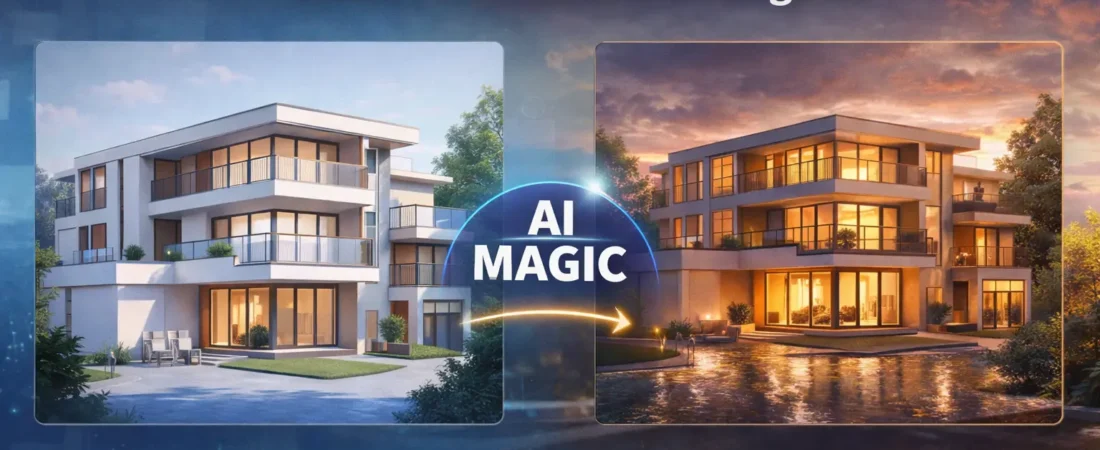
Create Ultra-Realistic Animations from a Single Image (2026 Guide)
Want a cinematic architectural animation without building a heavy 3D animation pipeline?
In 2026, architects and visualization artists are using AI to turn a single still image into smooth motion—
perfect for client presentations, real-estate marketing, and social media.
This guide focuses on SUAPP AIA and a practical workflow that works with real projects.

- How “image-to-animation” works for architecture (in plain English)
- A repeatable workflow for consistent, client-ready results
- How SUAPP AIA fits into the SUAPP AI plugin suite (and what it’s best at)
- Common mistakes that cause “fake” or shaky animations — and how to avoid them
- A video walkthrough you can follow step-by-step
What is AI “Image-to-Animation” in Architecture?
AI image-to-animation takes a single architectural image (render, photo, AI visual, or even a SketchUp viewport)
and creates motion by simulating depth and camera movement. The result looks like a short “video shot”:
subtle parallax, gentle camera push-in, and natural motion cues that feel more realistic than a simple zoom.
For architects, this is a high-ROI technique because it upgrades a static image into a modern marketing asset
without spending hours in After Effects or full 3D animation software.
architectural animation
client presentation
real estate marketing
Best Use Cases (Where This Works Extremely Well)
- Exterior hero shots (facades, villas, towers, streetscapes)
- Interior scenes with clean lines and strong lighting
- Concept visuals when you need fast story-driven motion for early design
- Social media reels and short ads for architecture studios
- Client pitch decks (motion adds premium feel instantly)
Step-by-Step Workflow for Natural, “Non-Fake” Results
Step 1) Start with a strong source image
The best results come from images that already have good composition: clean perspective,
visible depth (foreground/midground/background), and clear lighting. Avoid messy scenes with too much noise.
depth
composition
Step 2) Keep architectural lines stable
For architecture, line stability matters: verticals should stay vertical, and the motion should feel like a real camera move
(slow push-in, gentle pan, slight orbit). That’s how you avoid the “AI wobble” look.
Step 3) Use short motion, then loop cleanly
Short clips (3–6 seconds) tend to look more natural and are easier to loop for Reels/Shorts.
A clean loop improves watch time and performance on Western audiences too.
Step 4) Export in social-friendly sizes
For Instagram Reels / TikTok: 9:16 (1080×1920). For YouTube: 16:9 (1920×1080).
Consistency across formats helps you reuse the same asset for multiple platforms.
Where SUAPP AIA Fits (SUAPP AI Has Multiple Plugins)
SUAPP AI includes multiple modules, each with a different job. This article focuses on SUAPP AIA,
which is built for image-to-animation and motion creation from still images.
If you’re aiming for more visual impact without complex animation software, AIA is the module you want.
Watch the Full Tutorial (No Black Thumbnail)
Common Mistakes (And How to Fix Them)
- Too much motion: Keep camera movement subtle and slow. Architecture should feel premium and stable.
- Low-quality input: Blurry images create muddy animation. Use sharp inputs with clear lighting.
- Over-stylized effects: For clients, realism wins. Avoid heavy filters unless it’s a concept mood piece.
- Bad framing: Leave space for text/branding if the clip is for marketing or YouTube thumbnails.
Explore More from Nice Towers
Want faster production and stronger visuals? These internal resources help you improve SketchUp workflows,
AI rendering, and asset building.
Download ready-to-use SketchUp assets for interiors, exteriors, and presentation scenes — perfect for speeding up project visuals.
Learn professional SketchUp modeling and modern visualization workflows with structured lessons and real-world practice.
A productivity-focused toolkit that helps architects model faster, stay organized, and improve output quality inside SketchUp.
Step-by-step workflows for AI-enhanced rendering from SketchUp — lighting, materials, mood, and client-ready presentation quality.
Frequently Asked Questions
Yes — if the input image has clear depth and stable perspective, AI can generate motion that feels cinematic and realistic, especially with subtle camera movement.
Clean exterior/interior shots with strong lighting, clear depth, and minimal clutter. High-resolution renders and well-composed photos usually perform best.
It’s especially powerful for architectural visualization and real estate marketing, but designers and studios can use it for any cinematic motion from still images.
Keep motion subtle, use high-quality images, and prioritize stable architectural lines (verticals should remain vertical). Short clips also look more natural.