Nice Tower · SketchUp tools and workflow guides
Install SketchUp Plugins Guide
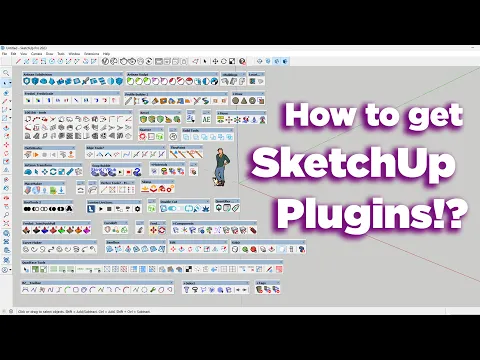
Install an .rbz extension in desktop SketchUp: open Extensions → Extension Manager → Install Extension, select the RBZ file, then enable its toolbar if needed. Follow the six illustrated steps below; the separate NT Plugins video shows where to find an NT download.
Table of Contents
How to Install SketchUp Plugins (.RBZ) – Step-by-Step Guide
Installing SketchUp plugins is one of the fastest ways to improve your architectural workflow, expand your 3D modeling tools, and unlock more productivity inside SketchUp. This guide explains exactly how to install SketchUp plugins using the standard .rbz format—the most common method used by architects, designers, and beginners.
Whether you are installing your first SketchUp extension or adding new tools to an existing setup, the process is simple. This tutorial shows you how to use the SketchUp Extension Manager, select the correct RBZ file, confirm installation, and load the plugin toolbar successfully.
- Open Extensions in SketchUp
- Choose Extension Manager
- Click Install Extension
- Select your .rbz plugin file
- Confirm that the plugin appears in the Extensions list
- Enable the toolbar and start using the plugin
Before You Start
Before installing any plugin, make sure the extension file is already downloaded to your computer. Most SketchUp plugins and extensions use the .rbz file format, which SketchUp can install directly through Extension Manager.
If you are still choosing tools, you can explore both free and premium options on Nice Tower:
These resources are especially useful for architects, interior designers, and professionals who want to improve SketchUp workflow, 3D modeling speed, and project presentation quality.
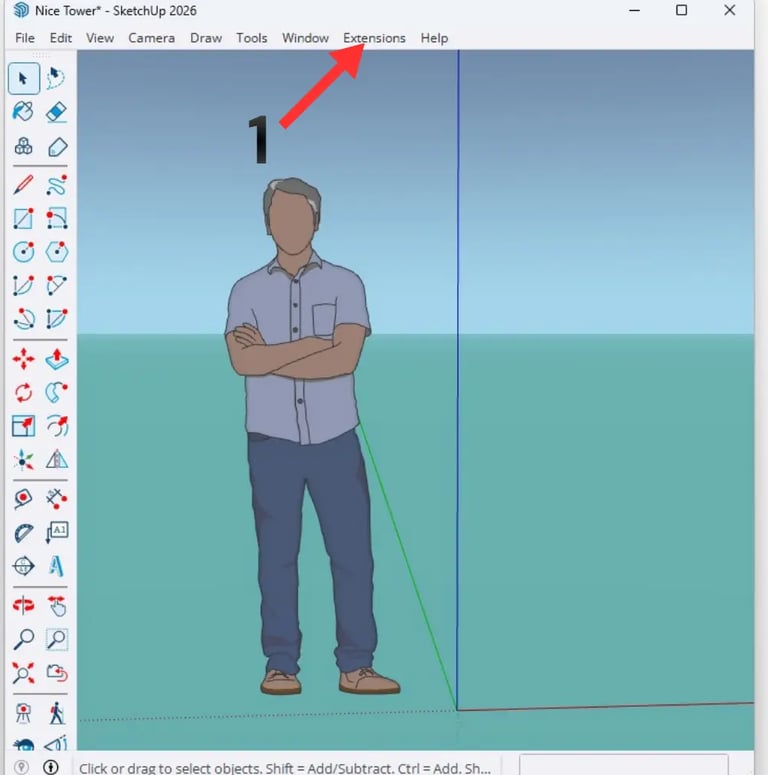
Step 1: Open the Extensions Menu
Start by launching SketchUp. In the top menu bar, locate the Extensions menu. This is the main area where SketchUp handles plugin installation, extension settings, and plugin management.
Step 2: Open Extension Manager
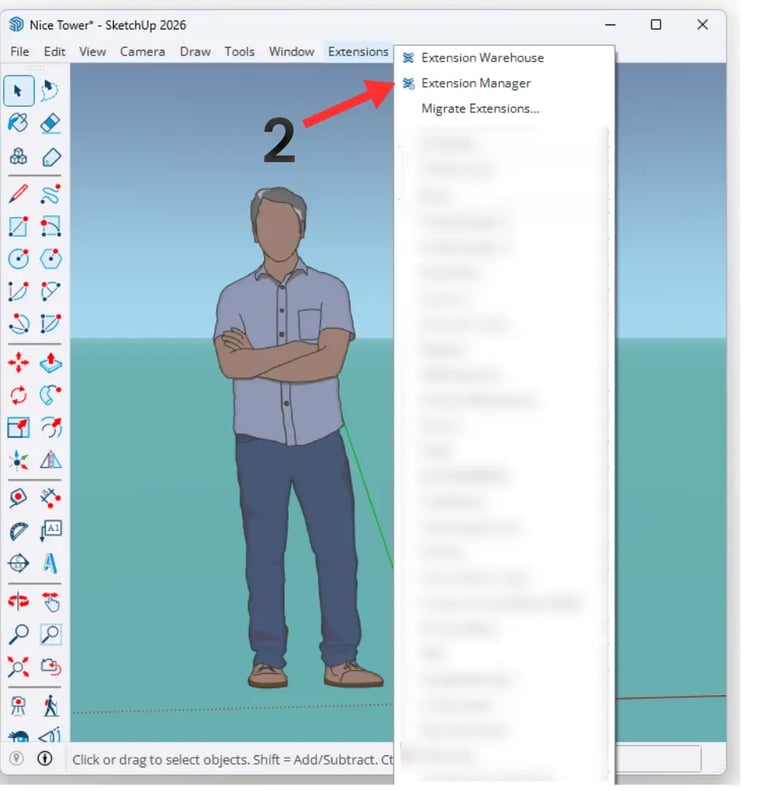
Click the Extensions menu and choose Extension Manager. This panel is where you can install new SketchUp plugins, review installed extensions, turn tools on or off, and manage your setup more efficiently.
Step 3: Click Install Extension
Inside Extension Manager, click the Install Extension button. This opens a file browser so you can locate the plugin package saved on your computer and begin the installation process.
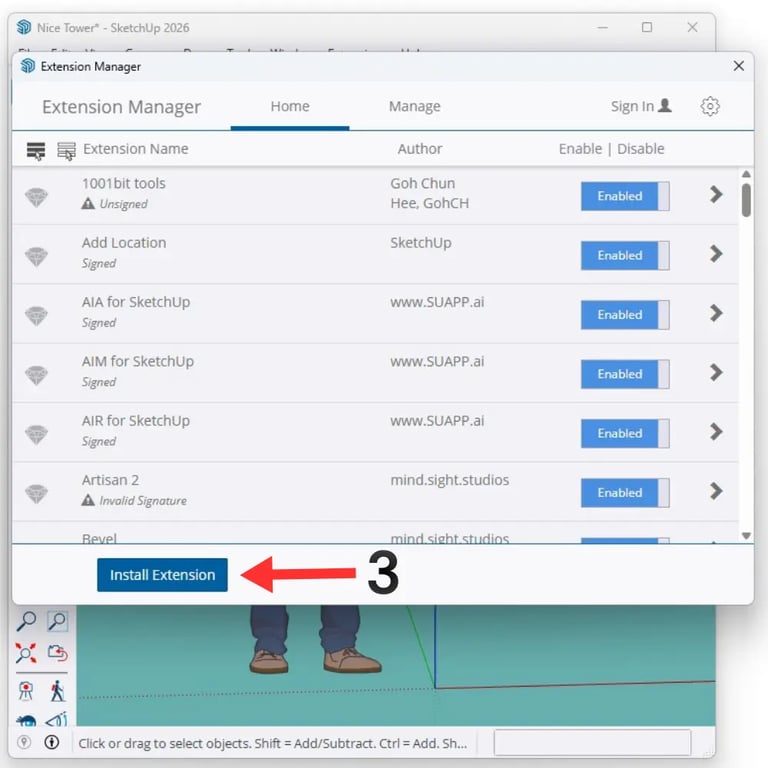
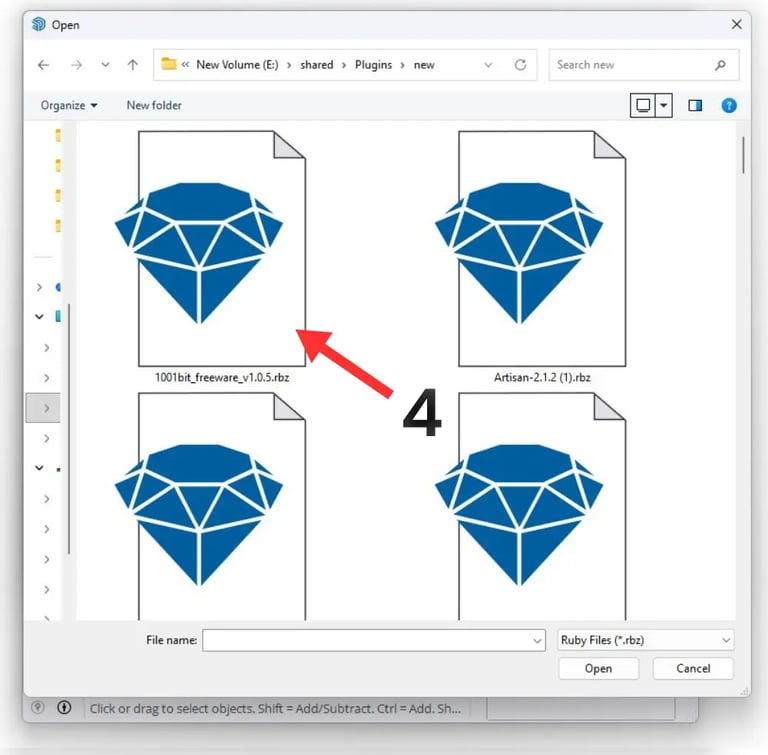
Step 4: Select the .RBZ Plugin File
Go to the folder where your plugin file is stored, then choose the correct .rbz file. This is the standard package format used for SketchUp plugin installation.
For a smooth setup, always use the original plugin file and make sure the version is compatible with your SketchUp installation.
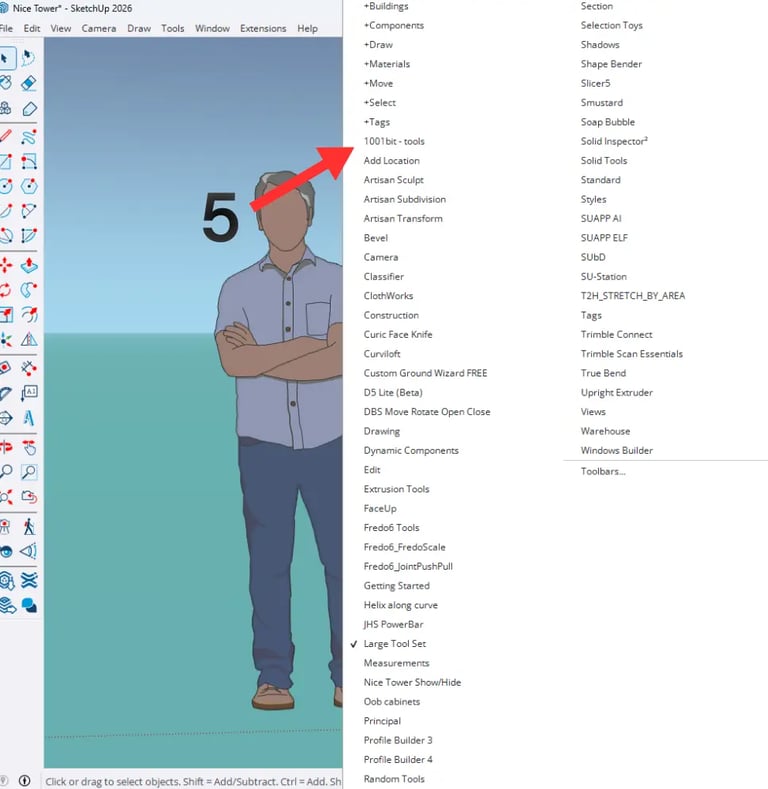
Step 5: Confirm the Plugin Has Been Installed
After the installation finishes, SketchUp should load the extension automatically. To verify that everything worked correctly, open the Extensions menu again and check whether the plugin name now appears in the list.
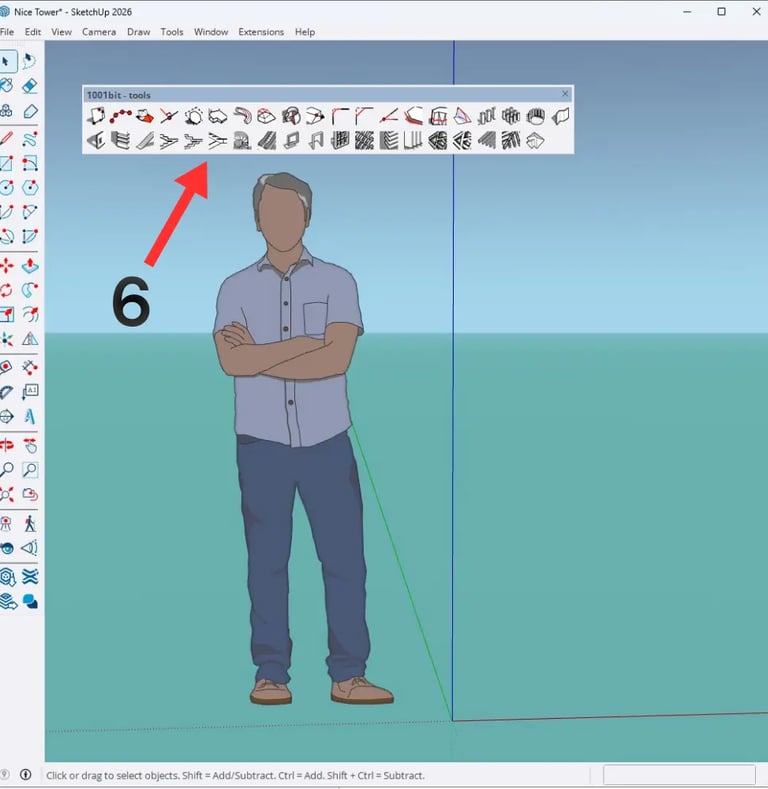
Step 6: Enable the Plugin Toolbar
Many SketchUp plugins include a toolbar or tool palette. If the toolbar shows up automatically, the plugin is fully installed and ready to use. If it does not appear right away, you may need to enable it manually from SketchUp’s toolbar settings.
NT PLUGINS · DEDICATED DOWNLOAD GUIDE
How to Download and Install NT Plugins for SketchUp
This separate tutorial shows how to find the NT Plugins collection, open an individual plugin page and download its RBZ file. Installation then uses the same Extension Manager workflow shown above.
Toolbar activation is demonstrated on Windows. Check each plugin’s own requirements for your operating system. Later sections demonstrate several NT tools; their example settings are not installation requirements.
Troubleshooting SketchUp Plugin Installation
1. Make sure the file is in .RBZ format
SketchUp extensions are normally installed through .rbz files. If the plugin was downloaded in another format, make sure you have the correct package before trying again.
2. Check whether the extension is enabled
Open Extension Manager and confirm that the plugin is turned on. In some cases, the installation works but the extension remains disabled.
3. Restart SketchUp
Some plugins require a quick restart before their toolbar or commands appear properly.
4. Use the correct plugin version
Plugin issues often happen because of version mismatch. Always install a version that supports your SketchUp setup.
5. Enable the toolbar manually
If the plugin appears under Extensions but the tools are missing from the interface, open the toolbar settings and activate the plugin toolbar manually.
Why Installing SketchUp Plugins Matters
SketchUp plugins help architects, interior designers, and 3D professionals work faster and deliver better results. The right tools improve modeling, detailing, automation, AI rendering, and overall productivity.
Once a plugin is installed correctly, it becomes part of your daily workflow and can make a real difference in how efficiently you build and present professional SketchUp projects.
Improve Your SketchUp Workflow with Nice Tower
SUAPP AI
AI-powered rendering and workflow tools are changing how architects use SketchUp. SUAPP AI helps create faster, smarter, and more visually polished outputs.
Learn about SUAPP AI →SketchUp Tutorials
Explore practical SketchUp tutorials designed for architecture, modeling productivity, and professional 3D workflows.
View SketchUp tutorials →Online SketchUp Courses
Our online courses help architects and designers build stronger skills with structured lessons, real examples, and applied workflows.
Explore online courses →SketchUp 3D Models
Save time with production-ready SketchUp 3D models for architecture, interiors, exteriors, and fast scene building.
Browse 3D model library →Final Thoughts
Installing SketchUp plugins is a simple but essential skill for any architect, designer, or beginner who wants to get more value from SketchUp. Once you understand how to install an .rbz plugin, use the Extension Manager, and enable the toolbar, adding new tools becomes quick and straightforward.
In most cases, the workflow is the same:
- Open Extensions
- Go to Extension Manager
- Click Install Extension
- Select the .rbz file
- Confirm the plugin appears in the menu
- Enable the toolbar and begin using the tools
Once installed, the right SketchUp plugins can improve modeling speed, workflow quality, and professional architectural output.
Frequently Asked Questions
Open Extensions, go to Extension Manager, click Install Extension, select the .rbz file, and confirm the extension loads correctly.
In many cases, the extension is installed but the toolbar needs to be enabled manually from SketchUp’s toolbar settings or after restarting the application.
This guide covers RBZ installation in supported desktop versions of SketchUp. SketchUp for Web does not install desktop Ruby extensions through Extension Manager. Check the extension developer’s requirements for your SketchUp release, operating system and any dependencies.
You can explore free plugins here: Free SketchUp Plugins and premium options here: SketchUp Plugin Bundle.
Check that your extension is ready to use
After completing the illustrated installation steps, use these three checks to confirm the setup. They are not another installation procedure.
Enabled
Confirm the extension is enabled in Extension Manager. If it does not load, check its required libraries and supported SketchUp version.
Commands available
Look for the menu command or toolbar described by the developer. Not every extension includes a toolbar; restart SketchUp only if its instructions require it.
Test safely
Try one documented command in a disposable model before using it in a project. Select geometry only when that command requires it.
Developer requirements and licensing
Use the developer information for install SketchUp plugins to confirm current editions, requirements and support. Check your exact SketchUp release and operating system. A trial, subscription and permanent license may have different conditions. Follow our RBZ installation guide for orientation, then follow the instructions specific to the chosen extension.
Continue learning
Explore our SketchUp project tutorials, compare modeling tools or choose a format from the live course collection. Use a relevant lesson to practice a complete project instead of collecting extensions without a clear purpose.
Practice a complete SketchUp project
Use these Nice Tower lessons to practice installation and project modeling. They are related learning examples; check the specific developer demonstrations above for the exact extension operation.