Nice Tower · SketchUp tools and workflow guides
SketchPlus for SketchUp
SketchPlus adds selection, alignment, component and architectural modeling tools to desktop SketchUp. This guide focuses on a hipped-roof example, selection scope and version requirements so you can choose a tool for a specific modeling task.
Table of Contents
SketchPlus for SketchUp – 40+ Productivity Tools for Faster Modeling
If you use SketchUp daily, you know that small repetitive tasks can consume a surprising amount of time. This is why many users search for solutions like SketchPlus for SketchUp, SketchUp productivity tools, and SketchUp workflow extensions. SketchPlus is a popular SketchUp plugin that bundles dozens of time-saving tools into one extension, helping you model faster and stay focused on design instead of repetitive clicks.
At NiceTowers, we recommend SketchPlus to SketchUp users who want a clean, efficient workflow—especially architects, interior designers, and 3D modelers who build complex scenes and need speed.
What is SketchPlus for SketchUp?
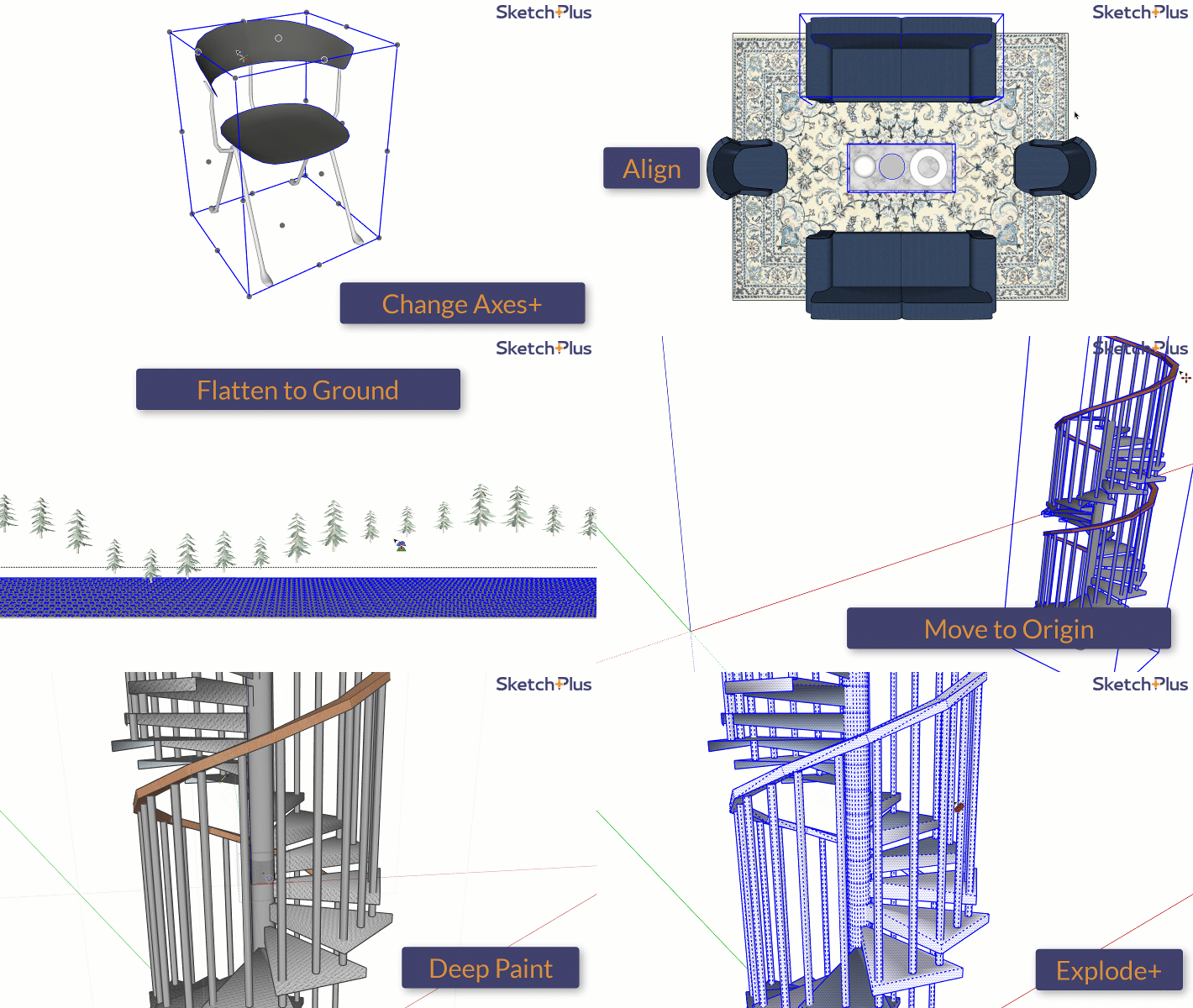
SketchPlus groups tools for selection, moving objects, components, drawing, cameras, buildings, materials and tags. Examples include Filter Selection, Align, Mirror+, Smart Array and Draw Hipped Roof. Choose the operation that matches your task; a larger toolkit does not guarantee faster work on every project.
- Faster workflow: reduce repetitive actions and clicks
- Model cleanup support: tools that help produce cleaner geometry
- Everyday modeling utilities: practical helpers for common SketchUp tasks
- Ideal for production work: especially when building scenes, interiors, or assets at scale
SketchPlus in Action (GIF Tutorials)
Below are quick visual examples showing the extension features in action. These demos are helpful if you are comparing SketchUp extensions or searching for SketchUp roof tool and other productivity workflows.
the extension Promo Overview
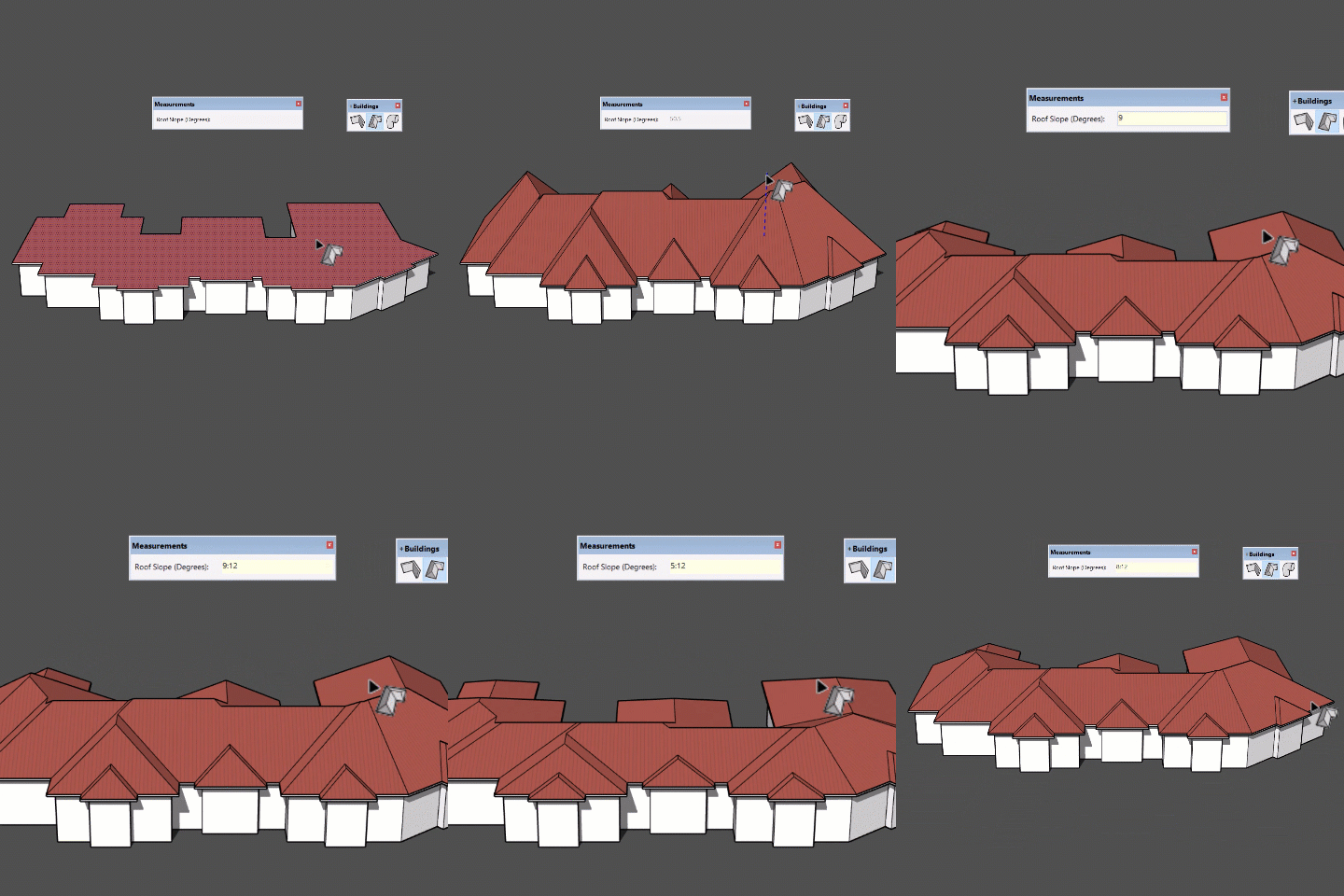
Roof Tool Example (the extension)
Who Should Use the extension?
Interior designers & architects
Draw Walls, Draw Hipped Roof and Draw Pipes provide focused building tools. Use an isolated test group to check dimensions and selection context before adding their output to an architectural model.
3D modelers building assets or libraries
Component tools such as Mirror+, Smart Array and Batch Save address repeated-object tasks. Inspect component axes and the intended instances before an operation, then check the result in a saved copy.
SketchUp users who want fewer plugins
Instead of managing many small extensions, the extension offers a consolidated toolkit—simplifying your plugin stack and reducing workflow friction.
Where the extension Fits in a Professional Workflow
Many SketchUp users combine productivity plugins with learning resources and asset libraries. If you are building a serious workflow, these internal resources may help:
- Free SketchUp Plugins
- SketchUp Interior Design Training
- SketchUp Tools
- Premium SketchUp 3D Models
- Lupa AI (NiceTowers)
Download / Buy the extension (Official Website)
Visit the extension Official WebsiteAffiliate Disclosure: This page may contain affiliate links. If you purchase through our link, NiceTowers may earn a commission at no extra cost to you.
Frequently Asked Questions
Is the extension free?
SketchPlus requires a license for use. Install its RBZ with Extension Manager and activate the license. A downloadable installer should not be confused with a free commercial license; check current purchase terms through the existing purchase button.
What does the extension add to SketchUp?
the extension adds a large bundle of productivity tools designed to speed up common SketchUp actions, modeling workflows, and cleanup tasks.
Does the extension work for roof modeling in SketchUp?
Draw Hipped Roof creates a hip roof from a horizontal face. You can enter its slope in degrees or as a rise-to-run ratio. Other roof forms require further modeling; the tool does not directly generate every roof type.
Do I need the extension if I already use other SketchUp plugins?
If your workflow involves many small tools, the extension can reduce plugin clutter by consolidating practical functions into one extension.
SketchPlus hipped-roof workflow and tool checks
The toolkit includes selection utilities, alignment and array workflows alongside focused modeling tools. Learn one operation at a time and compare it with the native sequence you currently use. Selection scope matters: an action applied to the wrong nested objects can create extra cleanup. Record useful shortcuts only after the operation is predictable.
1. Prepare a horizontal roof footprint
Make a copy of your building footprint and work in its intended editing context. Draw Hipped Roof expects a horizontal face; check the footprint before invoking the tool.
2. Generate the roof and set the pitch
Optionally preselect the face, start Draw Hipped Roof and click the horizontal face. Define its slope and height with the next click, or enter a slope in degrees or a ratio such as 5:12.
3. Understand axes and repeated pitches
The roof tool uses the global model Z direction even when the drawing axes have been changed. Double-click another horizontal face to reuse the last slope. Check the resulting roof against the building rather than assuming its local axes control the operation.
4. Plan overhangs and other roof forms
Prepare an offset footprint for an overhang before creating the roof. Gable and shed roofs require additional geometry editing after the hip roof. Keep the generated roof separate while reviewing eaves, fascia and wall intersections.
5. Check version-specific tools
The developer lists SketchPlus for SketchUp Make 2017 and Pro 2017–2026 on Windows and Mac. Deep Select Face requires SketchUp 2020 or newer. Follow current license and RBZ instructions in the developer information for SketchPlus and RBZ installation guide.
6. Use selection and component tools deliberately
Before using Filter Selection, Align or a component tool, confirm which objects and editing context are active. Compare one operation on a test selection first. Keep the original model available until dimensions and repeated instances have been checked.
Questions before choosing SketchPlus
What should I check before using this workflow?
Check selection scope, component axes and the behavior of repeated edits. Read the current developer guidance and use a test copy to compare the result. Software tools support a modeling process; the final dimensions, geometry and project information still need to match the design you intend to communicate.
Where can I learn the next step?
Explore our SketchUp project tutorials, compare modeling tools or choose a format from the live course collection. Use a relevant lesson to practice a complete project instead of collecting extensions without a clear purpose.
Practice a complete SketchUp project
Use these Nice Tower lessons to practice installation and project modeling. They are related learning examples; check the specific developer demonstrations above for the exact extension operation.