
SketchUp tools video guide — Watch and Practice
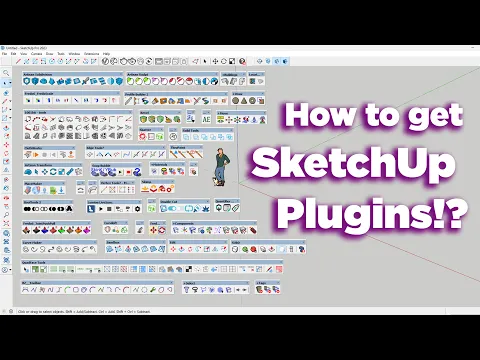
Watch Nice Tower’s guide to downloading and installing SketchUp plugins, then use this page to organize a careful first-installation exercise. Choose an extension for a specific modeling task and check its developer information before adding it to your setup. The video provides a visual reference; the developer’s current installation instructions and compatibility details remain the right place to verify requirements for your version.
SketchUp tools video guide: 4 steps to practice
1. Identify the tool you need
Describe the modeling task you want to improve before choosing an extension. This makes it easier to compare tools and to avoid adding several overlapping plugins at once. Read the developer’s description, supported versions and licensing information. A tool that appears in a tutorial may have changed since recording, so check the current distribution source before downloading it.
2. Follow the installation route
Use the developer’s stated installation method and the extension-management tools available in your SketchUp version. Keep the original download and note which version you installed. If a dialog or menu differs from the video, pause and compare it with the current instructions rather than continuing by guesswork. Install one extension at a time so any problem is easier to isolate.
3. Find the commands
After installation, look for the menu entry or toolbar described by the developer. Some tools appear in different places and may require a restart or an additional setup step. Test the extension in a small new file with simple geometry. A successful installation should be followed by a basic operation check before you rely on the tool in a large project.
4. Resolve a setup problem
If the expected command is missing, review the installed version and any dependency requirements first. Check the extension’s own documentation for activation and troubleshooting guidance. Record the message you see instead of repeatedly reinstalling without a diagnosis. Keep your main project closed while testing a new tool, then return to it once the small test behaves as expected.
Practice with this SketchUp tools video guide
Keep a short record of the inputs, changes and result from your SketchUp plugins installation practice. Save the starting model and a separate working copy, then note the step at which your result differs from the demonstration. A clear comparison helps you decide what to repeat and makes a later question easier to explain. Repeat the exercise with one deliberate variation after the original example is understood.
When reviewing SketchUp plugins installation, compare the result with the purpose of the exercise rather than only its appearance in a screenshot. Check the project from another view, inspect the important geometry and identify which choices depend on your software version or project brief. Keep the useful decisions and revise the ones that do not support your own design. The video remains a visual learning reference, while your project requirements determine the final result.
Keep an extension setup understandable
Maintain a small installation record. Note the developer, extension version and the SketchUp version used for the test. Keep a link to the official instructions so you can check them again when upgrading or moving to another computer. This simple record is more useful than trying to remember which download or setup step produced the working installation.
If an operation fails after installation, separate the setup question from the geometry question. Confirm that the command is available, then test it on a small example that follows the developer’s requirements. An extension can be installed correctly while receiving unsuitable input geometry. Describe the result and any message before changing several settings or replacing multiple tools at once.
After the basic test succeeds, introduce the tool into a saved project copy and perform one relevant operation. Review the result, save the useful change and keep the untouched source project. A controlled introduction helps you identify what the extension changes and gives you a clear route back if its behavior does not suit the task.
Resources for this SketchUp tools video guide
After watching this SketchUp tools video guide, open SketchUp Tools. Then explore Extension installation guide for a related next step. Choose a resource that addresses the task you are practicing; you do not need to follow unrelated lessons simply to complete this exercise.
SketchUp Tools
Read the companion guide and compare its resources with the operation shown in this video.
Open companion guide →Extension installation guide
Use this related collection to plan the next practical task for your own project.
Explore related resources →Keep extension notes
Record the extension name, source and version alongside the SketchUp version used for your test. Include the location of the command in the interface and a brief description of what you expected it to do. If a toolbar is absent, check whether the extension is enabled before installing another copy. Use the developer guidance to distinguish a license issue from an installation issue.
Keep a simple test model that can be opened quickly when checking a future update. Avoid testing several new extensions at the same time when diagnosing a problem, because the source of a change becomes harder to identify. Retain your previous working project and record any settings you change. Once the test is reliable, use the tool on a saved copy of a real project and compare the result with the original geometry.
SketchUp tools video guide: common questions
Why is an installed toolbar missing?
Check the developer’s command location, restart requirements, dependencies and compatibility information. Not every extension adds a separate toolbar.
What should I do if the video does not play here?
Use the original YouTube link above to open the same video directly. Availability and any access requirements are controlled by the video owner. The embedded player retains its normal playback and full-screen controls.
How can I practice SketchUp plugins installation after watching?
Follow the four-step plan on this page, save your starting model and compare one small variation with the original result. Return to the relevant part of the video when a step needs another review.